Showing posts with label Iphone. Show all posts

iOS - Accelerometer

Accelerometer is used for detecting the changes in the position of the device in the three directions x, y and z. We can know the current position of the device relative to the ground. For testing this example, you'll need to run it on a device and to doesn't work on simulator.

Accelerometer – Steps Involved

Step 1. Create a simple View based application.
Step 2. Add three labels in ViewController.xib and create ibOutlets naming them as xlabel, ylabel, and zlabel.
Step 3. Update ViewController.h as follows −
#import 

@interface ViewController : UIViewController<UIAccelerometerDelegate>
{
IBOutlet UILabel *xlabel;
IBOutlet UILabel *ylabel;
IBOutlet UILabel *zlabel;

}
@end

Step 4. Update ViewController.m as follows −
#import "ViewController.h"

@interface ViewController ()

@end

@implementation ViewController

- (void)viewDidLoad
{
[super viewDidLoad];
[[UIAccelerometer sharedAccelerometer]setDelegate:self];
//Do any additional setup after loading the view,typically from a nib
}

- (void)didReceiveMemoryWarning
{
[super didReceiveMemoryWarning];
// Dispose of any resources that can be recreated.
}
- (void)accelerometer:(UIAccelerometer *)accelerometer didAccelerate:
(UIAcceleration *)acceleration{
[xlabel setText:[NSString stringWithFormat:@"%f",acceleration.x]];
[ylabel setText:[NSString stringWithFormat:@"%f",acceleration.y]];
[zlabel setText:[NSString stringWithFormat:@"%f",acceleration.z]];
}

@end

Output

When we run the application in iPhone device, we'll get the following output −


iOS - Environment Setup

iOS - Xcode Installation

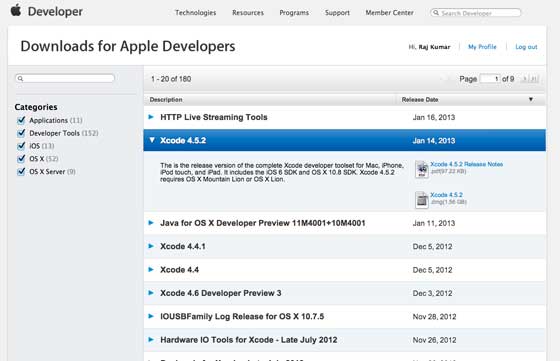
Step 1 − Download the latest version of Xcode 

Step 2 − Double click the Xcode dmg file.
Step 3 − You will find a device mounted and opened.
Step 4 − There will be two items in the window that's displayed namely, Xcode application and the Application folder's shortcut.
Step 5 − Drag the Xcode to application and it will be copied to your applications.
Step 6 − Now Xcode will be available as a part of other applications from which you can select and run.
You also have another option of downloading Xcode from the Mac App store and then install following the step-by-step procedure given on the screen.

Interface Builder

Interface builder is the tool that enables easy creation of UI interface. You have a rich set of UI elements that is developed for use. You just have to drag and drop into your UI view. We'll learn about adding UI elements, creating outlets and actions for the UI elements in the upcoming pages.

You have objects library at the right bottom that consists the entire necessary UI element. The user interface is often referred as xibs, which is its file extension. Each of the xibs is linked to a corresponding view controller.

iOS Simulator

An iOS simulator actually consists of two types of devices, namely iPhone and iPad with their different versions. iPhone versions include iPhone (normal), iPhone Retina, iPhone 5. iPad has iPad and iPad Retina. A screenshot of an iPhone simulator is displayed below.


You can simulate location in an iOS simulator for playing around with latitude and longitude effects of the app. You can also simulate memory warning and in-call status in the simulator. You can use the simulator for most purposes, however you cannot test device features like accelerometer. So, you might always need an iOS device to test all the scenarios of an application thoroughly.

iOS (iPhone, iPad) Tutorial

iOS (iPhone, iPad) Tutorial

iOS is a mobile operating system developed and distributed by Apple Inc. It was originally released in 2007 for the iPhone, iPod Touch, and Apple TV. iOS is derived from OS X, with which it shares the Darwin foundation. iOS is Apple's mobile version of the OS X operating system used in Apple computers.

Audience

This tutorial has been designed for software programmers with a need to understand the iPhone and iPad application development on iOS using Objective C programming.

Prerequisites

Before proceeding with this tutorial, you should have a basic understanding of Computer Programming terminologies. A basic understanding of any of the programming languages, especially Objective C programming language, will help you learn the concepts of iOS programming faster.

iOS - First iPhone Application

Creating the First App

Now we are going to create a simple single view application (a blank app) that will run on the iOS simulator.
The steps are as follows.
Step 1 − Open Xcode and select Create a new Xcode project.


Step 2 − Select Single View Application.


Step 3 − Enter the product name, i.e., the name of the application, organization name, and then the company identifier.


Step 4 − Ensure that Use Automatic Reference Counting is selected in order to automatically release the resources allocated once it goes out of scope. Click Next.
Step 5 − Select the directory for the project and select create.


Step 6 − You will see a screen as follows −


In the screen above, you will be able to select the supported orientations, build and release settings. There is a field deployment target, the device version from which we want to support, lets select 4.3, which is the minimum deployment target allowed now. For now, these are not required and let's focus on running the application.
Step 7 − Now, select iPhone simulator in the drop down near Run button and select run.


Step 8 − That's it; you have successfully run your first application. You will get an output as follows −

Now let's change the background color, just to have a start with the interface builder. Select ViewController.xib. Select background option in the right side, change the color and run.


In the above project, by default, the deployment target would have been set to iOS 6.0 and auto-layout will be enabled. To ensure that our application runs on devices that are on iOS 4.3 onwards, we have already modified the deployment target at the start of creation of this application, but we didn't disable auto-layout.
To disable auto-layout, we need to deselect the auto-layout checkbox in the file inspector of each nib, i.e., the xib files. The various sections of Xcode project IDE are given in the following figure (Courtesy: Apple Xcode 4 User documentation).

File inspector is found in the inspector selector bar as shown above and auto layout can be unchecked there. Auto layout can be used when you want to target only iOS 6 devices. Also, you'll be able to use many new features like passbook if you raise the deployment target to iOS 6. For now, let's stick to iOS 4.3 as the deployment target.

Code of the First iOS Application

You will find five different files that would have been generated for your application. They are listed as follows −
  • AppDelegate.h
  • AppDelegate.m
  • ViewController.h
  • ViewController.m
  • ViewController.xib

AppDelegate.h

// Header File that provides all UI related items. 
#import

// Forward declaration (Used when class will be defined /imported in future)
@class ViewController;

// Interface for Appdelegate
@interface AppDelegate : UIResponder <UIApplicationDelegate>

// Property window
@property (strong, nonatomic) UIWindow *window;

// Property Viewcontroller

@property (strong, nonatomic) ViewController *viewController;
//this marks end of interface
@end
Important items in code −
  • AppDelegate inherits from UIResponder that handles iOS events.
  • Implements the delegate methods of UIApplicationDelegate, which provides key application events like finished launching, about to terminate and so on.
  • UIWindow object to manage and co-ordinate the various views on the iOS device screen. It's like the base view over which all other views are loaded. Generally there is only one window for an application.
  • UIViewController to handle the screen flow.

AppDelegate.m

// Imports the class Appdelegate's interface
import "AppDelegate.h"

// Imports the viewcontroller to be loaded
#import "ViewController.h"

// Class definition starts here
@implementation AppDelegate


// Method to intimate us that the application launched successfully
- (BOOL)application:(UIApplication *)application
didFinishLaunchingWithOptions
:(NSDictionary *)launchOptions
{
self.window = [[UIWindow alloc] initWithFrame:[[UIScreen mainScreen] bounds]];

// Override point for customization after application launch.
self.viewController = [[ViewController alloc]
initWithNibName
:@"ViewController" bundle:nil];
self.window.rootViewController = self.viewController;
[self.window makeKeyAndVisible];
return YES;
}

- (void)applicationWillResignActive:(UIApplication *)application
{
/* Use this method to release shared resources, save user data,
invalidate timers, and store enough application state information
to restore your application to its current state in case it is
terminated later. If your application supports background
execution, this method is called instead of
applicationWillTerminate: when the user quits.*/

}

- (void)applicationWillEnterForeground:(UIApplication *)application
{
/* Called as part of the transition from the background to the
inactive state. Here you can undo many of the changes made on
entering the background.*/

}

- (void)applicationDidBecomeActive:(UIApplication *)application
{
/* Restart any tasks that were paused (or not yet started) while
the application was inactive. If the application was previously in
the background, optionally refresh the user interface.*/

}

- (void)applicationWillTerminate:(UIApplication *)application
{
/* Called when the application is about to terminate. Save data if
appropriate. See also applicationDidEnterBackground:. */

}

- (void)applicationWillTerminate:(UIApplication *)application
{
/* Called when the application is about to terminate. Save data if appropriate.
See also applicationDidEnterBackground:. */

}

@end
Important items in code −
  • UIApplication delegates are defined here. All the methods defined above are UI application delegates and contains no user defined methods.
  • UIWindow object is allocated to hold the application allocated.
  • UIViewController is allocated as the window's initial view controller.
  • To make the window visible, makeKeyAndVisible method is called.

ViewController.h

#import  

// Interface for class ViewController
@interface ViewController : UIViewController

@end
Important items in code −
  • The ViewController class inherits the UIViewController, which provides the fundamental view management model for the iOS applications.

ViewController.m

#import "ViewController.h"

// Category, an extension of ViewController class
@interface ViewController ()

@end

@implementation ViewController

- (void)viewDidLoad
{
[super viewDidLoad];
// Do any additional setup after loading the view, typically from a nib.
}

- (void)didReceiveMemoryWarning
{
[super didReceiveMemoryWarning];
// Dispose of any resources that can be recreated.
}

@end
Important items in code −
  • Two methods implemented here are defined in the base class UIViewController.
  • Do initial setup in viewDidLoad which is called after the view loads.
  • didReceiveMemoryWarning method is called in case of memory warning.

How To Use Samsung Smart View with Your iPhone/iPad

Samsung Smart View is a free application that turns your iPhone or iPad into a remote control for Samsung Smart TVs. In order to use this application, all that is required is that both devices be connected to the same local network. 

Control Your Samsung Smart TV with Your iPhone/iPad

Download Samsung Smart View from the Apple Store: 


Once downloaded, you will be able to change channels and control your television volume from your iPhone. You can even browse through Smart Hub applications and input text via the iPhone's virtual keyboard.

How To Turn Off Shake to Undo on iOS 9

Most built-in apps on iPhones are equipped with the Shake to Undo feature, which allows users to undo text typing by simply shaking their device, and selecting theUndo Typing confirmation box. If you do not want to take advantage of this feature, here's a quick tip to disable the Shake to Undo feature. 

How To Disable the Shake to Undo Feature

Go to Settings > General > Accessibility > Shake to Undo. Toggle Shake to Undoto Off. 

N.B. Unless you are running on iOS 9 or using a jailbroken device, the Shake to Undo feature is impossible to turn off. In order to disable the feature, you must be upgraded to the new iOS 9 operating system.

How to Prevent Safari from Opening Downloaded Files

Safari automatically opens downloaded files it considers as Safe. It may include compressed files, PDF, pictures, videos and other type of files downloaded from trusted sources. But what if a virus or malware was hidden in one of these so-called safe files? You might want to turn off this feature (enabled by default) for your own good. 

Method 1 - From Safari's settings

Launch Safari, click on the Safari menu > Preferences. Go to the General tab and clear the Open "safe" files after downloading checkbox. 

Method 2 - Using the terminal

Open a terminal and run the following command: defaults write com.apple.Safari AutoOpenSafeDownloads -boolean NO

Make Screencast Movies of your iPhone or iPad with QuickTime

Did you know that your Mac ships with a screencasting software that can be used for quickly recording movies of your computer screen? You can record the microphone audio along with the video, there’s an option to show or hide the mouse clicks during the screen recording and the movies can be exported in HD formats. This very-capable app is called QuickTime Player.

And it just got better. If you have upgraded your Mac to OS X Yosemite, you can use the same QuickTime Player software to record the screen of your iOS device in 2 easy steps. All you need is an iPhone or iPad running iOS 8 and a Lightning to USB cable – it is the same cable that you are currently using to connect your iOS device to the computer or the charger.


QuickTime as an iOS Screen Recorder

Step 1: Connect the iPhone to the computer through the 8-pin Lightning to USB cable. This will not work with older iOS devices that use the 30-pin connector.
Step 2: Open the QuickTime Player on your Mac (Yosemite) and choose “New Movie Recording” from the File menu  
. If you are to record screencasts of your desktop, choose the “New Screen Recording” option.
Step 3: Click the arrow near the red record button and choose iPhone or iPad as the source camera. You can also select your device name in the Microphone section to record any audio coming out of your iOS device.
Once you are done recording the iOS screen, you can use the File -> Export menu in the QuickTime Player to save the movie in .mov format at 720p or 1080p resolution that can be uploaded to YouTube without conversion.

iOS Screencasting without the Mac

The iOS screencasting feature is only available with QuickTime on Mac OS X Yosemite and requires a relatively newer device running iOS 8 or later.
If you are however using Windows, or running an older version of Mac OS X, you can still record iOS screencasts with the help of apps like AirServer, Reflector orX-Mirage. AirPlay is built into iOS and Mac OS X and these apps use the the same AirPlay technology to mirror anything on your iOS screen to your Mac or Windows computer over a wireless local network. No cables required.

Kategori

Kategori