Showing posts with label iOS. Show all posts

iOS - Accelerometer

Accelerometer is used for detecting the changes in the position of the device in the three directions x, y and z. We can know the current position of the device relative to the ground. For testing this example, you'll need to run it on a device and to doesn't work on simulator.

Accelerometer – Steps Involved

Step 1. Create a simple View based application.
Step 2. Add three labels in ViewController.xib and create ibOutlets naming them as xlabel, ylabel, and zlabel.
Step 3. Update ViewController.h as follows −
#import 

@interface ViewController : UIViewController<UIAccelerometerDelegate>
{
IBOutlet UILabel *xlabel;
IBOutlet UILabel *ylabel;
IBOutlet UILabel *zlabel;

}
@end

Step 4. Update ViewController.m as follows −
#import "ViewController.h"

@interface ViewController ()

@end

@implementation ViewController

- (void)viewDidLoad
{
[super viewDidLoad];
[[UIAccelerometer sharedAccelerometer]setDelegate:self];
//Do any additional setup after loading the view,typically from a nib
}

- (void)didReceiveMemoryWarning
{
[super didReceiveMemoryWarning];
// Dispose of any resources that can be recreated.
}
- (void)accelerometer:(UIAccelerometer *)accelerometer didAccelerate:
(UIAcceleration *)acceleration{
[xlabel setText:[NSString stringWithFormat:@"%f",acceleration.x]];
[ylabel setText:[NSString stringWithFormat:@"%f",acceleration.y]];
[zlabel setText:[NSString stringWithFormat:@"%f",acceleration.z]];
}

@end

Output

When we run the application in iPhone device, we'll get the following output −


iOS - Objective C

iOS - Objective C

The language used in iOS development is objective C. It is an object-oriented language and hence, it would be easy for those who have some background in object-oriented programming languages.

Interface and Implementation

In Objective C, the file where the declaration of class is done is called theinterface file and the file where the class is defined is called theimplementation file.
A simple interface file MyClass.h would look like the following −
@interface MyClass:NSObject{ 
// class variable declared here
}
// class properties declared here
// class methods and instance methods declared here
@end
The implementation file MyClass.m would be as follows −
@implementation MyClass
// class methods defined here
@end

Object Creation

Object creation is done as follows −
MyClass  *objectName = [[MyClass alloc]init] ;

Methods

Method is declared in Objective C as follows −
-(returnType)methodName:(typeName) variable1 :(typeName)variable2;
An example is shown below.
-(void)calculateAreaForRectangleWithLength:(CGfloat)length 
andBreadth
:(CGfloat)breadth;
You might be wondering what the andBreadth string is for; actually it’s an optional string, which helps us read and understand the method easily, especially at the time of calling. To call this method in the same class, we use the following statement −
[self calculateAreaForRectangleWithLength:30 andBreadth:20];
As said above, the use of andBreadth helps us understand that breadth is 20. Self is used to specify that it's a class method.

Class Methods

Class methods can be accessed directly without creating objects for the class. They don't have any variables and objects associated with it. An example is shown below.
+(void)simpleClassMethod;
It can be accessed by using the class name (let's assume the class name as MyClass) as follows −
[MyClass simpleClassMethod];

Instance Methods

Instance methods can be accessed only after creating an object for the class. Memory is allocated to the instance variables. An example instance method is shown below.
-(void)simpleInstanceMethod; 
It can be accessed after creating an object for the class as follows −
MyClass  *objectName = [[MyClass alloc]init] ;
[objectName simpleInstanceMethod];

Important Data Types in Objective C

S.N.Data Type
1NSString
It is used for representing a string.
2CGfloat
It is used for representing a floating point value (normal float is also allowed but it's better to use CGfloat).
3NSInteger
It is used for representing integer.
4BOOL
It is used for representing Boolean (YES or NO are BOOL types allowed).

Printing Logs

NSLog - used for printing a statement. It will be printed in the device logs and debug console in release and debug modes respectively. For example,
NSlog(@"");

Control Structures

Most of the control structures are same as in C and C++, except for a few additions like for in statement.

Properties

For an external class to access the class, variable properties are used. For example,
@property(nonatomic , strong) NSString *myString;

Accessing Properties

You can use dot operator to access properties. To access the above property, we will do the following.
self.myString = @"Test";
You can also use the set method as follows −
[self setMyString:@"Test"];

Categories

Categories are used to add methods to the existing classes. By this way, we can add method to classes for which we don't have even implementation files where the actual class is defined. A sample category for our class is as follows −
@interface MyClass(customAdditions)
- (void)sampleCategoryMethod;
@end

@implementation MyClass(categoryAdditions)

-(void)sampleCategoryMethod{
NSLog(@"Just a test category");
}

Arrays

NSMutableArray and NSArray are the array classes used in objective C. As the name suggests, the former is mutable and the latter is immutable. An example is shown below.
NSMutableArray *aMutableArray = [[NSMutableArray alloc]init];
[anArray addObject:@"firstobject"];
NSArray *aImmutableArray = [[NSArray alloc]
initWithObjects
:@"firstObject",nil];

Dictionary

NSMutableDictionary and NSDictionary are the dictionary classes used in objective C. As the name suggests, the former is mutable and the latter is immutable. An example is shown below.
NSMutableDictionary*aMutableDictionary = [[NSMutableArray alloc]init];
[aMutableDictionary setObject:@"firstobject" forKey:@"aKey"];
NSDictionary*aImmutableDictionary= [[NSDictionary alloc]initWithObjects:[NSArray arrayWithObjects:
@"firstObject",nil] forKeys:[ NSArray arrayWithObjects:@"aKey"]];

iOS - Environment Setup

iOS - Xcode Installation

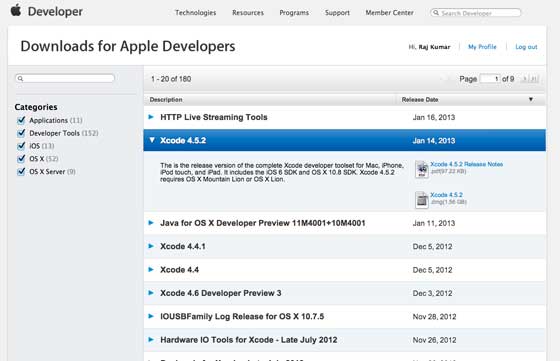
Step 1 − Download the latest version of Xcode 

Step 2 − Double click the Xcode dmg file.
Step 3 − You will find a device mounted and opened.
Step 4 − There will be two items in the window that's displayed namely, Xcode application and the Application folder's shortcut.
Step 5 − Drag the Xcode to application and it will be copied to your applications.
Step 6 − Now Xcode will be available as a part of other applications from which you can select and run.
You also have another option of downloading Xcode from the Mac App store and then install following the step-by-step procedure given on the screen.

Interface Builder

Interface builder is the tool that enables easy creation of UI interface. You have a rich set of UI elements that is developed for use. You just have to drag and drop into your UI view. We'll learn about adding UI elements, creating outlets and actions for the UI elements in the upcoming pages.

You have objects library at the right bottom that consists the entire necessary UI element. The user interface is often referred as xibs, which is its file extension. Each of the xibs is linked to a corresponding view controller.

iOS Simulator

An iOS simulator actually consists of two types of devices, namely iPhone and iPad with their different versions. iPhone versions include iPhone (normal), iPhone Retina, iPhone 5. iPad has iPad and iPad Retina. A screenshot of an iPhone simulator is displayed below.


You can simulate location in an iOS simulator for playing around with latitude and longitude effects of the app. You can also simulate memory warning and in-call status in the simulator. You can use the simulator for most purposes, however you cannot test device features like accelerometer. So, you might always need an iOS device to test all the scenarios of an application thoroughly.

iOS - First iPhone Application

Creating the First App

Now we are going to create a simple single view application (a blank app) that will run on the iOS simulator.
The steps are as follows.
Step 1 − Open Xcode and select Create a new Xcode project.


Step 2 − Select Single View Application.


Step 3 − Enter the product name, i.e., the name of the application, organization name, and then the company identifier.


Step 4 − Ensure that Use Automatic Reference Counting is selected in order to automatically release the resources allocated once it goes out of scope. Click Next.
Step 5 − Select the directory for the project and select create.


Step 6 − You will see a screen as follows −


In the screen above, you will be able to select the supported orientations, build and release settings. There is a field deployment target, the device version from which we want to support, lets select 4.3, which is the minimum deployment target allowed now. For now, these are not required and let's focus on running the application.
Step 7 − Now, select iPhone simulator in the drop down near Run button and select run.


Step 8 − That's it; you have successfully run your first application. You will get an output as follows −

Now let's change the background color, just to have a start with the interface builder. Select ViewController.xib. Select background option in the right side, change the color and run.


In the above project, by default, the deployment target would have been set to iOS 6.0 and auto-layout will be enabled. To ensure that our application runs on devices that are on iOS 4.3 onwards, we have already modified the deployment target at the start of creation of this application, but we didn't disable auto-layout.
To disable auto-layout, we need to deselect the auto-layout checkbox in the file inspector of each nib, i.e., the xib files. The various sections of Xcode project IDE are given in the following figure (Courtesy: Apple Xcode 4 User documentation).

File inspector is found in the inspector selector bar as shown above and auto layout can be unchecked there. Auto layout can be used when you want to target only iOS 6 devices. Also, you'll be able to use many new features like passbook if you raise the deployment target to iOS 6. For now, let's stick to iOS 4.3 as the deployment target.

Code of the First iOS Application

You will find five different files that would have been generated for your application. They are listed as follows −
  • AppDelegate.h
  • AppDelegate.m
  • ViewController.h
  • ViewController.m
  • ViewController.xib

AppDelegate.h

// Header File that provides all UI related items. 
#import

// Forward declaration (Used when class will be defined /imported in future)
@class ViewController;

// Interface for Appdelegate
@interface AppDelegate : UIResponder <UIApplicationDelegate>

// Property window
@property (strong, nonatomic) UIWindow *window;

// Property Viewcontroller

@property (strong, nonatomic) ViewController *viewController;
//this marks end of interface
@end
Important items in code −
  • AppDelegate inherits from UIResponder that handles iOS events.
  • Implements the delegate methods of UIApplicationDelegate, which provides key application events like finished launching, about to terminate and so on.
  • UIWindow object to manage and co-ordinate the various views on the iOS device screen. It's like the base view over which all other views are loaded. Generally there is only one window for an application.
  • UIViewController to handle the screen flow.

AppDelegate.m

// Imports the class Appdelegate's interface
import "AppDelegate.h"

// Imports the viewcontroller to be loaded
#import "ViewController.h"

// Class definition starts here
@implementation AppDelegate


// Method to intimate us that the application launched successfully
- (BOOL)application:(UIApplication *)application
didFinishLaunchingWithOptions
:(NSDictionary *)launchOptions
{
self.window = [[UIWindow alloc] initWithFrame:[[UIScreen mainScreen] bounds]];

// Override point for customization after application launch.
self.viewController = [[ViewController alloc]
initWithNibName
:@"ViewController" bundle:nil];
self.window.rootViewController = self.viewController;
[self.window makeKeyAndVisible];
return YES;
}

- (void)applicationWillResignActive:(UIApplication *)application
{
/* Use this method to release shared resources, save user data,
invalidate timers, and store enough application state information
to restore your application to its current state in case it is
terminated later. If your application supports background
execution, this method is called instead of
applicationWillTerminate: when the user quits.*/

}

- (void)applicationWillEnterForeground:(UIApplication *)application
{
/* Called as part of the transition from the background to the
inactive state. Here you can undo many of the changes made on
entering the background.*/

}

- (void)applicationDidBecomeActive:(UIApplication *)application
{
/* Restart any tasks that were paused (or not yet started) while
the application was inactive. If the application was previously in
the background, optionally refresh the user interface.*/

}

- (void)applicationWillTerminate:(UIApplication *)application
{
/* Called when the application is about to terminate. Save data if
appropriate. See also applicationDidEnterBackground:. */

}

- (void)applicationWillTerminate:(UIApplication *)application
{
/* Called when the application is about to terminate. Save data if appropriate.
See also applicationDidEnterBackground:. */

}

@end
Important items in code −
  • UIApplication delegates are defined here. All the methods defined above are UI application delegates and contains no user defined methods.
  • UIWindow object is allocated to hold the application allocated.
  • UIViewController is allocated as the window's initial view controller.
  • To make the window visible, makeKeyAndVisible method is called.

ViewController.h

#import  

// Interface for class ViewController
@interface ViewController : UIViewController

@end
Important items in code −
  • The ViewController class inherits the UIViewController, which provides the fundamental view management model for the iOS applications.

ViewController.m

#import "ViewController.h"

// Category, an extension of ViewController class
@interface ViewController ()

@end

@implementation ViewController

- (void)viewDidLoad
{
[super viewDidLoad];
// Do any additional setup after loading the view, typically from a nib.
}

- (void)didReceiveMemoryWarning
{
[super didReceiveMemoryWarning];
// Dispose of any resources that can be recreated.
}

@end
Important items in code −
  • Two methods implemented here are defined in the base class UIViewController.
  • Do initial setup in viewDidLoad which is called after the view loads.
  • didReceiveMemoryWarning method is called in case of memory warning.

Kategori

Kategori