Showing posts with label Mobile. Show all posts

How To Use Samsung Smart View with Your iPhone/iPad

Samsung Smart View is a free application that turns your iPhone or iPad into a remote control for Samsung Smart TVs. In order to use this application, all that is required is that both devices be connected to the same local network. 

Control Your Samsung Smart TV with Your iPhone/iPad

Download Samsung Smart View from the Apple Store: 


Once downloaded, you will be able to change channels and control your television volume from your iPhone. You can even browse through Smart Hub applications and input text via the iPhone's virtual keyboard.

Samsung Galaxy S6 Edge - How to Customize the Quick Settings Panel

The Quick Settings panel gives you a quick and easy access to your frequently used settings, power saving options, and the radio functions of your smartphone (Wi-Fi, GPS or Bluetooth). You need to toggle some of the features of your smartphone on/ off? Instead of going to Apps >Settings, you simply pull down the Quick Settings panel and activate/turn-off the desired feature. 

You can have up to 10 items displayed in the Quick Settings, 5 in the first row and 5 more when you left swipe on the panel. Want to have specific options displayed in the Quick Settings? This guide explains how to customize Quick Settings panel on the Samsung Galaxy S6 Edge: 

Swipe from the top of your screen to display the Quick Settings panel and then tap on the Editbutton: 


The items appearing in the highlighted box are also the ones displayed in the Quick Settingspanel: 


Drag a setting out of the highlighted box to remove it from the Quick Settings panel. You can also change the order in which the items appears, by moving them around within the highlighted box. 

Want to remove S Finder and Quick Connect from the Quick Settings panel? You simply have to clear their corresponding checkboxes: 


How to Share Files Between Mobile Phones and Computers

Your digital photos, documents, music, and other files are spread across a range of devices from your mobile phones to tablets and your computers. The devices are running different operating systems and therefore there’s no starard method that will allow you to easily copy files from one device to another.

For instance, how you do you transfer a file from your Android mobile phone to your iPad? Or how will you send a snippet of text copied on your Windows computer to your iPhone without emailing yourself? What is the quickest way to move multiple files from one Android tablet to another?


Share Files Between Android, iOS, Mac & Windows

The following how-to guide discusses apps, both web-based and mobile apps, that will help you transfer files, photos, web pages and everything else between your desktop computers and mobile devices easily without needing a USB cable.
The popular and most obvious solution for sharing files across devices is email. Send a file to yourself from one device and then download that email attachment on the other device. For bigger files, you can upload them to Dropbox, OneDrive or Google Drive from one device and download on your other device(s). If you are on a Wi-Fi network, prefer Dropbox since it will download the file over LAN instead of the cloud and thus the transfer would happen at a much faster rate.
If you wish to transfer text snippets, web page URLs or even clipboard content from one device to another, Google Keep is a recommended option. You can copy-paste text inside Keep and it instantly becomes available on your Android device. iOS and Mac users can install Scribe or BeamApp to effortlessly copy web page links and text notes from the Mac to your iPhone or iPad.
Like Keep, Push Bullet is another very handy app for sending web pages, map directions, text notes and even small files from your computer to phone, phone to phone or between computers. Push Bullet supports push notifications. It is available for iPhone, Android and desktop computers (as a Chrome add-on) while the iPad version will be available soon.
AirDroid is probably the only app you’ll ever need for moving files in and out of your Android phone and tablet wirelessly. Launch the AirDroid app on your Android, open web.airdroid.com on your desktop browser and scan the QR code to make the connection. Mac can install Droid NAS to access your Android phone’s folders and the SD card inside Finder as a Bonjour computer.
Unlike Android, Apple does not provide access to the iOS file system except for the media gallery. You can use Documents or Good Reader to transfer documents, photos and other files from the computer to your iPad and iPhone (or vice versa) over the local Wi-Fi network. These apps can be mounted as a network drive on your computer and they have a built-in browser to help you download and save web files that won’t download in the Safari browser.
Computer maker Lenovo recently introduced the ShareIt app for sharing files and everything else between your Android, iOS and Windows PCs. The app creates an ad-hoc network for sending files from one device to another and requires no Wi-Fi network, Bluetooth or data connection. The interface is beautiful, uncomplicated and all the recipient has to do is connect their device to the Wi-Fi network created by the app on the sender’s device for transferring files.
The popular JustBeamIt service offers an Android App to help you transfer files from your phone to the computer. Just select a file on the phone inside the JustBeamIt app and it will generate a unique URL. Open this URL on your desktop and the transfer would happen directly between your phone and computer over a P2P connection.
SuperBeam is another useful app for transferring files between Android devices. Select one or more files inside any file manager app and choose SuperBeam from the system-wide sharing menu. It will generate a QR code that you can scan with SuperBeam on your other device and the file transfer will happen automatically. If the two Android devices are not connected to the same Wi-Fi network, SuperBeam will transfer files using Wi-Fi Direct or NFC. The pro version also lets you send files from Android to your Mac, Windows or Linux computer (requires Java).
Any Send also makes it very easy to transfer files or even entire folders between devices over Wi-Fi. It’s more like a cross-platform version of AirDrop. You can copy a file or folder to the clipboard and paste it on your other devices visible inside Any Send. You can share files between Mac and PCs or between your Android phone and desktop computers.
Apple’s AirDrop is the perfect option for transferring files between your Macbook and iMac or between your iPhone and iPad. The upcoming version of AirDrop will also let you send files from Mac to iOS devices but until that happens, you can the free InstaShare app. All you have to do is drag the file from your computer to the target device. It works over Wi-Fi or Bluetooth and, unlike AirDrop, supports older iPhones and Macs as well.
If you need to transfer files between your Android phone and iPhone or iPad,Send Anywhere is a good option. You can send files of any size over peer-to-peer (when the two devices are on the same network) else it uses the cellular connection. All you have to do is pair the two devices by entering a 6-digit key and begin the transfer. They have a web-app as well allowing you to send (or receive) files from the desktop to your iOS or Android device.
Finally, you’ve BitTorrent Sync for automatically syncing folders between Windows, Mac, iPhone, iPad, Windows Phone and Android devices. The transfers do not involve the cloud – you put a file in the folder of one device and it magically appears on all your other devices.

Choose the Right App for Sharing Files

windows-pcWindowsmacbookMacios-devicesiOSandroidAndroid
Windows PCBT Sync
PushBullet
AnySend
BT Sync
PushBullet
AnySend
BT Sync
PushBullet
Documents
ShareIt
BT Sync
PushBullet
AnySend
ShareIt
JustBeamIt
Macbook, iMacBT Sync
PushBullet
AnySend
AirDrop
BT Sync
InstaShare
PushBullet
AnySend
Beam App
BT Sync
InstaShare
PushBullet
Documents
BT Sync
InstaShare
PushBullet
AnySend
JustBeamIt
DroidNAS
AndroidAirDroid
BT Sync
AnySend
ShareIt
JustBeamIt
AirDroid
BT Sync
InstaShare
AnySend
JustBeamIt
DroidNAS
SendAnywhere
BT Sync
InstaShare
ShareIt
SuperBeam
SendAnywhere
BT Sync
InstaShare
AnySend
ShareIt
JustBeamIt
iPhone, iPadDocuments
BT Sync
ShareIt
iTunes
Documents
Beam App
BT Sync
InstaShare
iTunes
AirDrop
BT Sync
InstaShare
ShareIt
BT Sync
InstaShare
ShareIt

How to Use Bookmarklets in Chrome for Mobile

like the Google Chrome browser on my Android and iOS devices for several reasons. The search suggestions that show up in the address bar as-you-type save time (and keystrokes) and I can even tap the microphone icon to search via voice. I can open a website in Chrome on my desktop and it instantly becomes available on the phone without requiring any Chrome-to-Phone extensions.

There’s the Incognito mode that lets you privately browse the web without leaving any traces once you exit the browser. The bookmarks and bookmarklets are always kepts in sync across all mobile devices and computers.


Bookmarklets Missing in Google Chrome (Mobile)

The one thing that I do however miss in Google Chrome, both on Android and iPhone /iPad, is the bookmarks toolbar. There isn’t an always-visible bookmarks bar and thus you can cannot run any of your bookmarklets  against the current web page.
Without bookmarklets, there are quite a few things that you cannot do inside a mobile browser. For instance, how do you save a web page to Evernote or Instapaper for reading later? How do you submit a page to StumbleUpon or pin an image from the page to Pinterest? How to auto-fill passwords that are saved in your LastPass account?
Fortunately, there exists a simple workaround that will help you use bookmarklets inside Chrome on your iOS and Android phone /tablet.

Using Bookmarklets in Chrome on Android and iOS

While you are on a web page inside Chrome mobile, tap the address bar and start typing the bookmarklet name as you have saved it inside Chrome on the desktop.
The omnibox (see screenshots) will show a bunch of suggestions pulled from the web as well as from your local bookmarks. Look for entries that are “starred” and have addresses that begin with “javascript” – these are bookmarklets and you can tap to run them against the current page.
Here are some screenshots that illustrate how you can use the Kindle bookmarklets from the Chrome browser running on an Android phone and an iPad. Not a one-click process but not cumbersome either. 

Bookmarklets in Chrome for Android


Bookmarklets in Chrome for iPad


Remote Control your Android Phone using SMS

How do you locate your mobile phone if the ringer is off? Maybe you switched the phone to vibrate mode while you were in a meeting and the device is nowhere to be found.


Wouldn’t it be nice if you could borrow your colleague’s phone and use it to turn on the ringer of your missing phone?
Meet Agastya, a new Android app that lets you “remotely” perform various tasks on your phone from any other phone via simple SMS commands. The other phone, that is sending the commands, need not be running Android – even the basic Nokia 1100 would do just fine – and either phones don’t require GPS or data plans (Internet).
The workflow is easy. You send an SMS command from a friend’s phone to your own phone in a given format and the app reacts accordingly. For instance, a command like “ringer” would turn on the ringer while “silent” would put the phone to silent mode.
The app can also help you retrieve your missed calls list or your incoming text messages via, you got it right, SMS. This feature should be handy for people who own multiple phones – you can easily check the call and SMS logs of your secondary phone from the one that’s in your pocket.
Here’s a complete list of SMS commands that you can try on your Android phone:
  • SILENT – Turn off the phone’s ringer
  • RINGER – Turn on the ringer
  • IMEI – Get the IMEI number* of your phone
  • LAST MESSAGES – Retrieve the last 5 text messages received on your phone
  • LAST CALLS – Know the last 5 missed/received/dialed numbers
  • – Fetch the contact number of a person from the address book.
[*] The IMEI number can help you block a misplaced (or stolen) phone from accessing mobile networks (type *#06# to know the IMEI of your existing phone).
Agastay isn’t the first app that offers such features. The more popular Where’s My Droidapp can not only turn on the ringer of your phone remotely but will also send you the phone’s current GPS location by SMS. There’s overlap but these apps are more inclined towards locating your lost phone while Agastay is like a command console – you can toggle between phone states or even fetch details of a contact remotely from the phone’s address book. The IMEI feature is also handy for blacklisting your misplaced phone.
In my tests, Agastya did work as advertised and the SMS based commands executed almost instantly though the app did crash in one instance. The company says that Agastay works on Android 2.2 and above.
On a related note, if you aren’t allowed to carry cell phones in your office, you should grab the SMS to Gmail app as it will auto-forward all your incoming text messages and missed calls list to your work email address.

Auto-Forward SMS and Missed Calls to your Email [Android]

You may wonder why would anyone want to forward text messages or missed call notifications to their email account when the cell phone is with them all the time? Won’t these messages add more noise to an overflowing email Inbox?


Not so. For instance, some of my friends work in a company where, for security reasons, they aren’t allowed to carry personal mobile phones inside though they do have regular phones at their desk and are allowed email access. They would therefore leave the phone at home but with auto-forwarding enabled, they’ll get an email alert as soon as someone sends them an SMS or calls on their cell during office hours.
Such a feature may also be handy for people who have recently switched to a different phone number and would like to keep track of all incoming calls and messages received on their previous phone but without having to carry it all the time.
The Android Market has dozens of apps that can bring the auto-forwarding feature to your mobile phone but the one that I like most is SMS2Gmail. It says “SMS” but the app can forward both SMS text messages and missed calls to your email address. You will get the complete message text in your email and the sender’s name as well provided that that number already exists in your phonebook.
It takes just one step to get it up and running. Launch the app, provide the credentials of your Gmail account and done. It needs the Google credentials in order to send email notifications but if that doesn’t make you too happy, just create another Gmail account and set it to auto-forward messages to your primary email account.
One more thing. You turn on email notifications manually but in a situation where you have have forgotten the phone at home, or have misplaced it somewhere, you can remotely activate auto-forwarding by sending an SMS from any another phone to your phone.
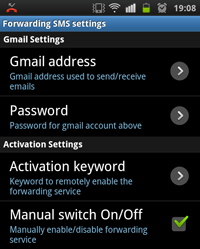
The app lets you assign an Activation Keyword (see screenshot) and as soon as a text arrives with that keyword, the auto-forwards will be enabled automatically.

How to Train Siri, Cortana, and Google to Understand Your Voice Better


No two people sound exactly alike. Different people have different accents and ways of pronouncing words, and computer voice recognition systems like Siri, Cortana, and Google’s voice search aren’t as good as actual human beings at understanding every voice. Train your voice assistant and it’ll be better at understanding you.

Traditionally, computerized voice recognition systems have required some training before they understood you. Modern voice assistants are designed to “just work,” but you can still make them recognize the words you say more often by training them.


Siri on IOS 9.1

Apple added some voice training features to Siri in iOS 9. Activate the “Hey Siri” feature — which allows you to say “Hey Siri” and start talking to Siri from anywhere — and you’ll be prompted to perform some voice training.

(On most iPhones, this only works while your screen is on or while your phone is plugged in. If you have an iPhone 6s, you can also say “Hey Siri” while your screen is off to start a voice search.)

To activate this feature, open the Settings app on your iPhone or iPad, tap the “General” category, and tap “Siri.” Activate the “Allow “Hey Siri”” option and you’ll be prompted to train Siri.

Siri will have you say “Hey Siri”, “Hey Siri, how’s the weather today?”, and “Hey Siri, it’s me.” This will improve Siri’s ability to understand you.


Cortana on Windows 10

Cortana includes a voice-training feature so you can help Cortana understand your voice better. Like Google, Cortana will upload your voice activity and store it to help Cortana learn your voice over time and understand you better — that’s what the “Speech, inking, & typing” privacy setting controls. You could disable it and tell Cortana to “Stop getting to know me,” but then it would have a harder time understanding you.

To start training Cortana, click or tap the Cortana bar on the taskbar, click the “Notebook” icon at the left of the Cortana pane, and select “Settings.” Activate the “Let Cortana respond to “Hey Cortana” option and then click the “Learn my voice” button. Cortana will walk you through saying a variety of phrases to learn your voice. All of these are things you can actually do with Cortana

.


Google on Android, Chrome, and Elsewhere

Google doesn’t include a special training process on Android. However, some manufacturers do offer this feature on their devices. For example, the Moto Voice application on Motorola phones will prompt you to train it by saying several things the first time you open the Moto Voice app.

Instead, Google captures and keeps all the voice searches, voice actions, and voice dictation activities you perform on your phone. It stores this with your “Voice and Audio Activity,” which is tied to your Google account and used on Android, in Chrome, and in Google’s apps on iOS. You’re free to delete or halt collection of this information at any time, but leaving it enabled means Google will learn how to recognize your voice and the way you pronounce words over time.

To choose whether or not your Android device reports this information, use the “Activity controls” pane in the Google Settings app.


None of these training processes are mandatory, but they’ll help the service in question understand you better. If you find yourself annoyed that your phone, tablet, or computer doesn’t understand you as well as it should, it may just need some training.

Other similar programs — for example, speech-to-text programs — generally have their own integrated training features, too. For example, the Speech Recognition feature that’s been part of Windows for years can be trained to work better.

Find the Perfect File Manager App for your Android

The good thing about Android is that it gives you access to the device’s entire file system without requiring you to “root” the phone (or tablet). Android, the vanilla edition, itself doesn’t include any file manager app but there are literally hundreds of apps in the Google Play store that fill the void and let you easily manage files and folders stored on your mobile device.


The Best File Manager App for Android

An ideal file manager app should support basic file operations (copy/move/delete/rename), it should provide access to the phone’s internal storage and the SD card, it should let you search and sort files, it should have thumbnail support for media files, the app should look good on both phones and tablet and the developer should be actively updating the app.
I have tested about a dozen file management apps for Android and some of these are almost as feature-rich and powerful as Windows Explorer or the Finder app on your Mac.
1. Total Commander – This is the most popular file manager app listed on the Google Play store with an average user rating of 4.9 though the interface is confusing and poorly designed. With Total Commander, you can zip and password-protect files and folders with AES encryption.
2. Astro File Manager – Astro is a unified file manager for your local files and the cloud. It can connect to your Dropbox, Google Drive, SkyDrive and other cloud storage services and you can thus easily access and mange all your files from one central app. ASTRO is ad-supported and sometimes their full-screen interstitial ads feel intrusive.
3. ES File Explorer – This is again a feature-rich and extremely popular file management app for Android that has a clean interface and does too many things. It can connect to various cloud services, you can also transfer files from FTP servers and shared folders on your home network plus there’s a disk analyzer app to help you discover the space-hogging files.
4. File Expert – An ad-supported file manager app with an easy-to-use UI and the paid version offers some unique features like File Shredder (for deleting files permanently) and Safe Box (for hiding files in a secret folder). The app offers a tabbed interface, commonly seen in browsers, and that makes it easy to jump from one open folder to another.
5. Xplore File Manager – This is a very popular app and jam-packed with features but the app’s layout is so bad, you can easily skip this one.
6. Sliding Explorer – This has a modern (flat) look and packs no extra or confusing features. You can add folders to your favorites list and access them quickly with a simple left-to-right swipe. There are light and dark themes to choose from, the app supports file previews and you can compress multiple file as a single zip. There’s no search feature though.
7. File Wrangler – A basic file manager with a beautiful UI and a dual-pane interface making it easy for you to copy/move files from one folder to another. You can tap the Search icon to locate files in the current folder. There’s also Quick Draw to help you bookmark your most-used folders and files for quick access.
8. Fylee – Another clean and simple file manager app for Android with just the essential features and free of advertising. Like Sliding Explorer, Fylee misses a search function too.
9. Google QuickOffice – While QuickOffice is more of an Office productivity suite from Google, the app also double as a file manager. Tap “Internal Storage” and you can browse the device’s file system, move or copy files between folders and there’s a search feature that simultaneously searches your phone and Google Drive. You can compress files too with QuickOffice.
10. AirDroid – AirDroid includes a file manager that you can find under Tools -> Files. This is a basic file management app but the real magic happens when you connect your phone to your desktop over Wi-Fi through AirDroid. Once connected, you can access and organize your Android files from the desktop inside a Windows Explorer style interface.
To conclude, if you already have QuickOffice or AirDroid on your Android phone, you don’t really need to install another file manager app. Else you can go with File Wrangler – the app has a nice, easy to use interface, free of advertising and supports a dual-pane interface. If you want your file manager app to do more than just file management, ES File Explorer is a good option.

How To Turn Your Windows 8, 8.1, 10 Device Into A WiFi Access Point

Previous editions of Windows allowed users to create ad hoc wireless connections between computers. You could use those connections to create a wireless network between multiple computers or to share the Internet connection that was available on one of them. This can no longer be done in Windows 8.1, at least not using a visual interface and the mouse. However, with the help of the Command Prompt and a few commands, you too can turn your Windows 8.1 laptop or hybrid device into a WiFi access point. Here's how:
NOTE: Lots of readers have asked us for a way to automate the steps described in this tutorial. That is why we have updated the tutorial and created a small program, which aims to automate the steps involved in this process, as much as possible. You can find more information and the download link at the end of the article. However, we do recommend that you read the whole article before using our program, so that you understand how to use it.

What You Need In Order For This To Work

In order to use your Windows 8.1 laptop or hybrid device as an WiFi access point for other devices, it must have at least 2 network cards installed and one of them must be a wireless network card. One of them must be connected to the Internet.
Setup scenarios we tested that worked great include:
  • One laptop using its Ethernet connection for Internet access and its WiFi adapter to broadcast - use a network cable to connect your Windows  8, 8.1, 10  laptop to the Internet and the wireless network card for the access point that's sharing the Internet access with other devices.
  • One laptop that is connected to the Internet through a USB mobile modem and broadcasts the wireless network through its WiFi adapter - many users will have a USB mobile modem available with 3G or 4G connectivity. They can use it for Internet access and use the wireless network adapter for creating the access point and sharing the Internet access with others.
  • One laptop and two wireless network adapters, one connected to the Internet and the other acting as an access point - you won’t find this situation too often, as laptops and hybrid devices don't come with two wireless network cards installed. However, you can install a USB wireless adapter and use it for creating the access point.

Step 1. Create A Virtual WiFi Network in Windows  8, 8.1, 10 

To begin, we'll need to open the Command Prompt with administrative privileges and use a command to create a virtual wireless network that is broadcasted by your Windows 8, 8.1, 10  device.
To show you how this is done, we will create a wireless network called Hotspot. The password for this network will be "Allsoftlearn".
Inside the Command Prompt window, type the following command:
netsh wlan set hostednetwork mode=allow ssid=Hotspot key=Allsoftlearn
Notice that the name of the network is set using the SSID parameter and the password is set using the KEY parameter. Obviously, you can set your own values for them.
To create the access point, press Enter. If all goes well, you should see that the hosted network has been set.
Now you have created a virtual adapter that can function as a wireless access point for other computers and devices in your area. However, in order for it to work, you need to take one more step: turn on this virtual adapter.
Do not close the Command Prompt. Keep it open and enter the following command:
netsh wlan start hostednetwork
Then, press Enter.
The virtual wireless adapter is now started and shown in the Network and Sharing Center.
You can connect all your devices to the newly created wireless network. However, it has no Internet access. If you stop at this point, when you connect other devices and computers to the newly created access point, you can create a network between them and use it to share files and resources.

Step 2. Allow Internet Access For The Devices That Are Connected To The Virtual WiFi Network

Open the Network and Sharing Center. Notice that the virtual network adapter you just created is displayed as active, but it has no Internet access at this time.
Click or tap the connection of the physical network adapter that currently has Internet access. In our case, it is an Ethernet connection.
This opens the Status window for the selected network adapter. Click or tap Properties.

In the Properties window, go to the Sharing tab.


In order to give Internet access to the virtual WiFi adapter that was created earlier, check the box near "Allow other network users to connect through this computer's Internet connection".


Then, select the virtual adapter that was created earlier.


Click or tap OK and Close to save the settings you've made.
Go back to the Network and Sharing Center and you will notice that the virtual network adapter now has Internet access.

The virtual adapter now gives Internet access to all the devices that are connected to it.


Print Files from any Mobile Phone using Dropbox

Print Files from any Mobile Phone using Dropbox

This trick will help you print documents, emails, photos, PDF files, etc. from a mobile phone and tablet to your printer. All you need is a printer connected to the computer (even your old wired printer will do) and a mobile device for sending print jobs – this could be a BlackBerry, iPhone, iPad, Android or any other mobile phone.

Wirelessly Print Anything from Anywhere, Anytime

While mobile phones have become a lot more capable in the past few years, the connection between the printer and your phone is still very weak.
For instance, if you are using a BlackBerry or an iPhone, how do you print any of the presentations or spreadsheets that you have as email attachments? Or if you are viewing driving directions on Google Maps using an iPad, how do you send that map to the printer?
Your phone’s app store will have a few printing apps to let you wirelessly print files but if you want to save a few bucks, you can simply use Dropbox to print documents from your phone to any printer without requiring any additional software.
Some upcoming printers will have built-in support for mobile printing via email but with Dropbox, you get the same feature without requiring any new hardware.
Before we get into the details, watch the video above as it shows how printing from a mobile phone actually works through Dropbox (apologies for the bad audio quality).
Print Files from any Mobile Phone through Dropbox
The workflow is like this. You download a small utility on your computer that runs in the background and constantly monitors one of your Dropbox folders for any new printing jobs.
You can send files for printing from your mobile phone through email or using any of the Dropbox mobile apps. As soon as Dropbox downloads the file locally, the utility will send it to the default printer. Once the file is printed, it gets archived to the logs folder.
To get this thing running on your computer, please follow these easy steps:
Step 1: Make sure that you have Dropbox installed and running on the computer that is connected to the printer.
Step 2: To send print jobs from your mobile device to the printer, you have two options. You can either download a Dropbox app on your mobile phone – they have apps for iPhone, BlackBerry, iPad, Android, Windows Phone, Nokia – or the other option is you upload the files (that you would like to print) to your Dropbox using email. You can use IFTTT to send files to Dropbox over email.
Step 3: Download this zip file* and double-click the eprint.vbs file (see thesource code). The script will create a sub-folder inside your main Dropbox folder called PrintQueue where all the mobile print jobs will queue up and another sub-folder called logs where all the completed jobs will be archived.
[*] VBS scripts are Windows-only but there are workarounds for Mac OS X and Linux as well.
Step 4: You are now all set to print files from our mobile phone. Just send a test file from your mobile phone to that secret email address, or upload it through the Dropbox mobile app, and your printer will turn it into a hard copy almost instantly.
The utility can also handle multiple files in one go and it should print almost all file formats for which you have an associated application on the computer. If you would like to shut down the eprint utility, launch Windows task manager and end the “wscript.exe” process from the list.

Troubleshooting Tips
If you have trouble setting up Dropbox for remote printing on your computer, there’s a chance that you may have associated the .vbs file with Notepad or some other text editor. Press shift and right click the file in Windows Explore and choose “Windows Based Script Host” under Open With. Alternatively, open the command prompt, type “cscript eprint.vbs” and hit enter.
Also, if you would like to close the Dropbox monitoring script, open the Windows Task Manager and remove the wscript.exe process(es). The printed jobs can be found in the PrintQueue/Logs  of your Dropbox directory.

Kategori

Kategori