Showing posts with label Email. Show all posts
A Gmail Filter to Find your Most Important Emails

A Gmail Filter to Find your Most Important Emails

Your Gmail Inbox is overflowing with email messages. Some are newsletters that you are subscribed to, some are messages from friends and colleagues that you would like to read as soon as they arrive while the rest could be spam that managed to trick the built-in Gmail filters.


Focus on the Most Important Emails First!

When you only have a limited amount of time to process that long queue of unread messages, it is important that you prioritize your emails and defer reading stuff that is not very important and can wait (like those newsletters).
Here are two simple Gmail filters that will automatically move out all the low-priority emails out of your Inbox so that you can focus on the important ones. They should also come handy when you are checking emails on the go – the high-priority items will be delivered to your mobile device while everything else will stay in your Gmail account for you to follow up later.

1. Filter out emails that are not addressed to you

If your name is not in the TO: or CC: field of an email message, chances are that you may not have to worry too much about responding to that message.
The following filter will automatically move messages out of your Inbox to another folder that are of less-priority as they are not addressed to your directly.
  • From: – you@email.com
  • To: – you@email.com
  • Has the words: cc: – you@email.com
  • Skip the Inbox (Archive It)
  • Apply the label: Not for me
If you have more than one active email address, you can either add them all to the above filter separated by the OR operator or setup another similar filter per address.
2. Move Bulk Emails to another folder
Bulk email messages are likely to contain words like “click here” or “unsubscribe” even if those hyperlinks are just a tactic of the spammer to confirm your email address. In either case, the existence of such words in the message can help us easily filter out bulk emails:
  • Has the words: unsubscribe OR “click here”
  • Skip the Inbox (Archive It)
  • Apply the label: Bulk Mail
Not everything under the “bulk mail” folder will be spam as it will also match email newsletters that you are subscribed to. That said, email newsletters never require immediate attention so they safely reside in a folder other than your inbox.
How to Use the Mailto Syntax – Examples

How to Use the Mailto Syntax – Examples

The mailto protocol lets you create hyperlinks that will directly launch the default email software and compose a new email message. Mailto commands in Firefox and Chrome even work with web mail programs like Gmail.

You probably know how to use the mailto command for quickly linking to one email address but the mailto syntax actually allows a lot more – you can address the same message to multiple addresses, populate the cc, bcc or subject fields, and even write text inside the email body.
Remember to use %20 for the space character and %0A to add a line break in the body text. You can also test any mailto command by directly typing the command in your browser’s address bar.

Master the mailto Syntax

Let’s assume you maintain the official Whitehouse website and need to create mailto links that will make it easy for visitors to reach the president via email.
  1. Send an email to Barack Obama (single recipient)
<a href=“mailto:obama@whitehouse.gov”>
  1. Send an email to Barack and Michelle Obama (separate multiple recipients with a comma)
<a href=“mailto:obama@whitehouse.gov,michelle@whitehouse.gov”>
  1. Send an email to Barack but put Michelle in the CC: list and Joe Biden in the BCC: list
<a href=“mailto:obama@whitehouse.gov?cc=michelle@whitehouse.gov&bcc=joe@whitehouse.gov”>
  1. Send an email to Barack Obama with the subject “Congrats Obama”
<a href=”mailto:obama@whitehouse.gov?subject=Congrats%20Obama”>
  1. Send an email to Barack Obama with the subject “Congrats Obama” and some text in the body of the email message
<a href=”mailto:obama@whitehouse.gov?subject=Congrats%20Obama&body=Enjoy%20your%20stay%0ARegards%20″>
You may use any permutations and combinations while writing a mailto hyperlink but make sure that there’s only one “?” character.

Open Email Links on Web Pages with Gmail or Yahoo Mail

There’s a new very useful feature in Firefox 3.0.3 that enables you to open mailto: links on web pages in the email program of your choice.

For instance, you may open email links directly inside Gmail, Yahoo! Mail or you could configure mailto link with desktop based email clients like Outlook, Windows Live Mail or Thunderbird.


To access this option, go to the "Tools" menu, click "Options", select the "Applications" tab and then search for "mailto" in the Content Type column.
Now when you click an email link on a web page, it will directly open a "Compose New Mail" window of Gmail or Yahoo! irrespective of what your default email client is.
Note that this could be done earlier as well, either via Google Talk , or the Google Toolbar, or the Better Gmail extension but this is a much simple approach. Thanks Blogoscoped.

All Gmail Users Have Two Email Addresses

You probably know that you can easily create multiple email aliases in Gmail by adding the plus symbol or dots to your Gmail username but here’s something even more interesting.

When you create a Gmail account, you actually get two email addresses – one is the regular @gmail.com address while the second email address has @googlemail.com in the domain.
That means if your email address in Gmail is something like billgates@gmail.com, all email messages that are sent to billgates@googlemail.com will also be delivered to your own Gmail account. That’s two for the price of one.

Like the Gmail plus trick, you can take advantage of these two domains so that less spam reaches your Gmail mailbox. For instance, Give the @googlemail.com address to your close contacts (put that in the visiting card) while keep the @gmail.com address for public (put it on your blog). Then set a Gmail filter such that all email messages with @googlemail.com in the header go a special folder so you will never miss important email from close friends.
And if you multiple Twitter accounts, associate one with your main @gmail.com address and the other with your new @googlemail.com address.

Simple Questions: What is a Windows Live ID or a Microsoft account?

Have you been using devices, tools or services from Microsoft? Then, at some point you might have been asked to provide a Windows Live ID. In Windows 8 you have been asked for a Microsoft Account. Never understood what they are and why you need them, let alone the benefits of having them? If that’s the case, then you should read this article, as it will explain everything you need to know about the Windows Live ID, also called Microsoft Account.

What is Windows Live ID/Microsoft Account?

The question is relatively simple to answer - Windows Live ID or Microsoft Account is an ID composed from an e-mail address and password, which you can use to login to most Microsoft websites, services and properties such as: Hotmail, Xbox Live, all Windows Live services (including SkyDrive and Messenger). It can be used also on your Windows computer, to enhance parental controls for the user accounts used by your children. In Windows 8 it is used to get access to all its features, including integration with Skydrive or to use the application Store. Windows 8, at least so far, is the only place where you will encounter the naming Microsoft Account instead of Windows Live ID. They are the same thing though.

Do I Have a Windows Live ID/Microsoft Account?

How do you know if you have a Windows Live ID? Easy - are you using any of these services: Hotmail, Windows Live Messenger or Xbox Live? If you are, then you already have a Windows Live ID. Use the same e-mail and password to log in to any other websites or services requesting a Windows Live ID.

How to Create a Windows Live ID/Microsoft Account (With or Without a Microsoft E-mail Address)?

If you don’t have a Windows Live ID, you can easily create one by completing all the required forms on the Windows Live Signup Page. When you complete the form, Microsoft proposes that you create an ID using one of their e-mail services (Hotmail or Live.com).
If you already have an e-mail address from another provider and you don’t want to create a new one with Microsoft, you CAN use that one instead. On the signup page, look for a link saying: "Or use your own email address". Click on it and wait for a slightly different form to load.
Complete your existing e-mail address, a password and all the other requested details, and you will have your Windows Live ID created in no time.
Watchout: If you create a Windows Live ID using an existing email address, it is best not to use the same password. Create a different password for your Windows Live ID. In this case, if the password for any of these two accounts gets stolen, the "hacker" won’t have access to both services.

What’s In It For Me?

I guess by now you are asking yourself: Why should I create a Windows Live ID/Microsoft Account? What do I get by having it?
The simple answer is - easy access to almost all Microsoft products, services, properties and websites. Create an ID if you are using or planning to use:
  • Any of the tools in the Windows Live Essentials suite.
  • Devices such as: your Xbox console and the Xbox Live service, your Zune media player or your Windows Phone 7.
  • Get a free e-mail account from Microsoft (Hotmail or Live.com).
  • Use all the features included with Windows 8.

Conclusion

If you are the "geek type", using lots of devices and tools, you will surely need to create a Windows Live ID/Microsoft Account at some point. I hope this tutorial manage to explain the full picture about it. If you still have any questions left, don’t hesitate to ask using the comments form below.
How to Politely Ask Someone to Stop Sending You Junk Email

How to Politely Ask Someone to Stop Sending You Junk Email

What do you do when someone known (like a friend, relative or a work colleague) starts to spam your email inbox. They regularly forward you all kind of junk emails but you can’t block their addresses because one out of their 100 email messages may be useful.

Now if you know the person, a possible solution is to send him a polite but firm email asking him to stop sending you all those annoying and forwarded email messages.
If you are feeling a big hesitant to do this on your own, a free service called StopForwarding.us can help.
Stop Forwarding will send an anonymous but polite email to your friend requesting him to refrain from sending junk emails. This mail is sent anonymously so no hard feelings.
Here’s an excerpt: "Avoid sending forwards to friends or relatives that you’ve grown distant with. It can be frustrating for the recipient when the only correspondence you have with someone is via impersonal, unwanted email" 

Protect your Google Accounts with a USB Security Key

Most big-name web services like Gmail, Microsoft, Evernote, WordPress and Dropbox now support 2-step authentication to improve the security of your online accounts. Once you enable two-factor authentication, a malicious person will not be able to log into your online account even if they know the password – they’ll need access to your mobile phone as well to get in.
The verification codes required for logging into a 2-step enabled account can be generated either using a mobile app – like Authy or Google Authenticator – or you can have them sent to your mobile phone via a text message or a voice call. The latter option however will not work if the mobile phone associated with your account is outside the coverage area (like when you are in a foreign country).
There’s another option that makes the process of logging into a 2-factor enabled account Google less cumbersome. Instead of generating the verification codes on a mobile phone,  you can use a hardware based authenticator that can be inserted into a USB port on your computer and you’ll be signed-in automatically without having to hand-type the digits. 
The option works for both Google and Google Apps accounts and you don’t even need the mobile phone – watch video demo.

Google 2-factor Authentication Simplified

I am using the least-expensive Yubico key though there are more options to choose from. The first stop is to associate the USB security key with your Google Account. Go to myaccount.google.com, click on 2-step verification and then switch to the Security Keys tab. Here click the Register Device button and then insert the USB key into the computer to attach it to your account.
Once registered, you can use your USB security key to log into your Google Account from any other desktop or laptop computer without requiring the mobile phone. Simply open the Google login page, type in your username & password, click the Sign-in button and then insert the USB key. The lights will blink on the device, you need to tap it once and it will instantly log you into the account. Internally, the key generates the codes that are sent to Google servers and you are logged in.
The USB security keys require no software and they are compatible with Windows, Mac, Chrome OS and Linux computers. They need no batteries, they are tiny like a regular USB thumb drive but also rigid. You can also associate multiple Google Accounts with the same USB key which can be a huge timesaver for some users.
USB Security Keys make 2-factor authentication painless but you can only use them inside Google Chrome on desktop and laptop computers. You’ll still have to rely on SMS messages, or the authenticator app, for logging into Google on your mobile phones or in browsers like Firefox and Opera

Post to Twitter from Mobile Phones Without SMS

The following two hacks illustrate how can you publish updates ( or tweets) to Twitter using email but first, if you are wondering why would anyone need an email based Twitter client when there are so many good desktop Twitter clients, read this.

Why Update Twitter through Email

#1. You can send updates to Twitter using SMS text messages but unfortunately, that Twitter short code facility is either not available in all countries or is extremely expensive.
2. You can update your Twitter status using Google Talk on your mobile phone but not everyone may be carrying a smart phone.
3: There are situations when you have email access but no Internet – so none of the mobile apps for twitter would work.
Now that you know the benefits of using Twitter via email.
Here’s another solution to the same problem – it uses Blogger instead of Posterous.
Step 1: Go to blogger.com and create a dummy blog (say,mytwitter.blogspot.com)
Step 2: From the Blogger dashboard, go to Settings -> Email and set up your own private mail-to-blogger address – something like abc.twitter@blogger.com – save this email address to your mobile phone address book.
Step 3: Go to twitterfeed.com, login with your OpenID and associate the feedmytwitter.blogspot.com/rss.xml to your twitterfeed account.
That’s it. When you have something to share with the Twitter universe, send that as an email message to the address created in Step 2. Your tweet may take few minutes to show up on the Twitter homepage but it will be there definitely.
Send Yourself an Email in the Future Using Google Calendar

Send Yourself an Email in the Future Using Google Calendar

Ever wanted to send yourself emails that are scheduled for delivery sometime in the future – say ten years from now ?

Now there are some services that allow you to send email messages with a future send date but there aren’t any guarantees that the email will get delivered to your Inbox on the scheduled date as that service itself may not stick around for that long a period.

Therefore a more reliable solution for sending future emails to yourself is to create an event reminder in any web based calendar from Google, Yahoo!, Microsoft or AOL – some of these companies may merge in the future but they’ll definitely be around in some form in the coming decades.
To compose an email with a future date, just create a new event in any of the web calendars and set the event date same as the email delivery date. Then set an email reminder 5 minutes from the start of the event.
You can use the same trick to schedule SMS messages in the future as all web calendars can send event alerts to your mobile phone.
I prefer Google Calendar or Windows Live Calendar over Yahoo! Calendar since the latter only permits your to create events within 7 years while the Google or MSN impose no such restriction.

Import Your Outlook Emails into Gmail with Google Email Uploader

If you like to import all existing email messages and contacts from Microsoft Outlook (or Thunderbird) into your online Gmail account, Google has a free utility for you.
Called the Google Email Uploader, this Windows only tool will upload all your emails from Outlook into Gmail and also preserves the Outlook folder structure.
The Google Email Uploader only works for Gmail accounts associated with Google Apps, not the regular Gmail   (@gmail, @googlemail) accounts. For that you may want to check out this guide – Export Outlook Mails to Gmail.
Get the Google Email Uploader from Google Code – available for Windows XP and Vista. This utility was earlier for Google Apps Premier customers only but Google recently pushed it for the free Google Apps accounts as well.
All Gmail Users Have Two Email Addresses

All Gmail Users Have Two Email Addresses

You probably know that you can easily create multiple email aliases in Gmail by adding the plus symbol or dots to your Gmail username but here’s something even more interesting.

When you create a Gmail account, you actually get two email addresses – one is the regular @gmail.com address while the second email address has @googlemail.com in the domain.
That means if your email address in Gmail is something like billgates@gmail.com, all email messages that are sent to billgates@googlemail.com will also be delivered to your own Gmail account. That’s two for the price of one.
Like the Gmail plus trick, you can take advantage of these two domains so that less spam reaches your Gmail mailbox. For instance, gGive the @googlemail.com address to your close contacts (put that in the visiting card) while keep the @gmail.com address for public (put it on your blog). Then set a Gmail filter such that all email messages with @googlemail.com in the header go a special folder so you will never miss important email from close friends.
And if you multiple Twitter accounts, associate one with your main @gmail.com address and the other with your new @googlemail.com address.
A Gmail Filter to Find your Most Important Emails

A Gmail Filter to Find your Most Important Emails

Your Gmail Inbox is overflowing with email messages. Some are newsletters that you are subscribed to, some are messages from friends and colleagues that you would like to read as soon as they arrive while the rest could be spam that managed to trick the built-in Gmail filters.

Focus on the Most Important Emails First!

When you only have a limited amount of time to process that long queue of unread messages, it is important that you prioritize your emails and defer reading stuff that is not very important and can wait (like those newsletters).
Here are two simple Gmail filters that will automatically move out all the low-priority emails out of your Inbox so that you can focus on the important ones. They should also come handy when you are checking emails on the go – the high-priority items will be delivered to your mobile device while everything else will stay in your Gmail account for you to follow up later.

1. Filter out emails that are not addressed to you

If your name is not in the TO: or CC: field of an email message, chances are that you may not have to worry too much about responding to that message.
The following filter will automatically move messages out of your Inbox to another folder that are of less-priority as they are not addressed to your directly.
  • From: – you@email.com
  • To: – you@email.com
  • Has the words: cc: – you@email.com
  • Skip the Inbox (Archive It)
  • Apply the label: Not for me
If you have more than one active email address, you can either add them all to the above filter separated by the OR operator or setup another similar filter per address.
2. Move Bulk Emails to another folder
Bulk email messages are likely to contain words like “click here” or “unsubscribe” even if those hyperlinks are just a tactic of the spammer to confirm your email address. In either case, the existence of such words in the message can help us easily filter out bulk emails:
  • Has the words: unsubscribe OR “click here”
  • Skip the Inbox (Archive It)
  • Apply the label: Bulk Mail
Not everything under the “bulk mail” folder will be spam as it will also match email newsletters that you are subscribed to. That said, email newsletters never require immediate attention so they safely reside in a folder other than your inbox.
Use GMail Plus Trick to Find and Block the Source of Email Spam

Use GMail Plus Trick to Find and Block the Source of Email Spam

GMail Plus Addressing is a very useful trick to save your mailbox from spam. And if you get spammed, you know exactly which website / online service leaked your email address to spammers.

What is GMail Plus addressing? Say you have an email address like billgates@gmail.com. If you append a "plus" sign to your email username, gmail will ignore anything written between the + and @ sign.

So any email address sent to billgates+microsoft@gmail.com or billgates+blog@gmail.com or billgates+website@gmail.com will still reach your billgates@gmail.com inbox though technically, they are three different email aliases.

When you share your email with some non familiar service, like a newsletter, you can supply your existing email with a plus sign. If you ever receive spam addressed to that email alias, you know the exact source that's sending the spam and can easily block all emails using a GMail filter. 

[type the alias in the To: fiedd and redirect all incoming message to Trash or apply a new label]

More GMail Easter Eggs [including the dot trick].

Export and Backup Emails from Outlook to Gmail Online

Sachin writes – “I have few thousand email messages inside Microsoft Outlook (a pst file) organized in various folders. I know it is possible to download emails from Gmail to Outlook using POP3 or IMAP but is the reverse path possible.”

Sachin is looking for a trick to archive all Outlook email messages (and folders) to his online Gmail account for two reasons – one is secure backup and two, he will be able to access his old emails from any computer.


Solution: It is quite easy to transfer Outlook emails to your Gmail mailbox. Here’s a step by step guide:
Step 1: Enable IMAP in your Gmail account and then configure Outlook (or Outlook Express or Windows Live Mail) to sync with your Gmail address via IMAP. Read this guide.
Step 2: Import your Outlook PST file into a Personal folder that is different from your default Gmail Inbox.
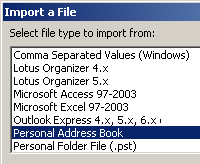
To import, click File -> Import And Export -> Import from another program or file. -> Next -> Personal Folder File (.pst) -> Next.
Select the PST file that contains your email, then pick the email folders that you want to import in Outlook and click Finish.
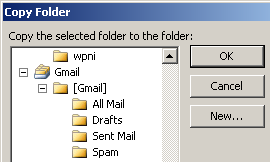
Step 3: Select the Personal folders that you want to backup online and copy them your Gmail Folder in Outlook (see screenshot).
In the Folder List, right-click the folder you want to copy and click CopyFolder name. Click the Gmail Folder in Outlook to copy that folder in that location. You can repeat the steps as needed for other folders.
That’s it. Your Outlook email will soon become available inside your online Gmail Inbox.
If your switching from Hotmail to Gmail, check this tutorial on moving emails from Hotmail to Gmail.
Caution: The migration from Outlook to Gmail can take a long time if you have very large Outlook pst file or if your internet connection speed is slow. Therefore, consider removing all large emails before moving them to your Gmail via IMAP.

Gina Trapani – How To Solve the Email Overload Problem

Gina Trapani – How To Solve the Email Overload Problem

Gina Trapani of Lifehacker explains how she deals with email overload:
As you get mail, you empty your inbox and process it right away. That sounds insane, but I have a three-folder system that I’ve been using religiously for a year. The three folders are Archive, which is stuff that you’re done with; Hold, which is stuff that you’re waiting to hear back from people on — like Amazon shipping notifications; and then Follow-up, which is stuff that you actually have to take more than two or three minutes to respond to. It sounds a little complicated, but it’s actually not.
As told to Sarah Lindner or Statesman.
Attach and Send Any File Type with GMail Like EXE, ZIP, Videos; Trick GMail Antivirus Scanner

Attach and Send Any File Type with GMail Like EXE, ZIP, Videos; Trick GMail Antivirus Scanner

Do you want to send MP3 songs and videos by gmail ? Or want to attach software executables (.exe) to your gmail email ? Read this guide.

When you send and receive attachments with GMail, they're auto scanned for viruses. If Gmail thinks your mail has viruses, it will attempt to clean the file or remove it. But if it detects a virus and can't remove it, then you won't be able to download it.

Thanks to the new GMail Anti Virus Scanner, you cannot send or receive emails withexe, dll, ocx, com or bat attachments even if they are sent in a zipped (.zip, .tar, .tgz, .taz, .z, .gz) format (The .rar format is still allowed)

GMail has some the best spam filtering and phishing detection capabilities but the GMail virus scanning is a bit disappointing. When I tried to email a Firefox 1.5 installer to a colleague, GMail uploaded the entire file (Firefox Setup 1.5.exe 4.98 MB) and then threw this alert:

This is an executable file. For security reasons, Gmail does not allow you to send this type of file.

This is such a poor solution. GMail Virus Scanner didn't scan the attachment, it just blocked it since it was an exe file. Why is Google calling it an AntiVirus scanner when it is merely blocking attachments of certain types like .exe? Yahoo! webmail too have an anti-virus but they accept .exe files since the yahoo anti-virus would scan even exe files and clean them if found infected.

Secondly, why did GMail upload the entire exe file to its server for scanning but didn't scan since it was an exe.? The GMail file uploader should be smart enough to disallow users from uploading files with extensions like exe, com, ocx, etc.

Google has no plans to make the "limited" antivirus feature optional, nor does it plan to stop blocking executables. Yahoo! Mail uses Symantec software to scan for viruses. Hotmail licenses its technology from Trend Micro. Google isn’t saying which vendor is providing the antivirus technology.

Since you cannot Turn Off GMail Anti Virus Scanning, you can use these GMail hacks to send program file (exe), virus samples and other blocked formats with GMail:

Technique 1. Use a free file hosing online service like Rapidshare, Megaupload or Yousendit to upload your file and send the link of the uploaded file in your GMail message.

2. Rename the file: Change the file extension to fool the GMail scanner. The new attachment could contain instructions making it easier for the recepient to derive the actuall attachment type. For instance,

Rename Adobe-Reader.exe to Adobe-Reader.exe.removeme

3. If you have lot of exe files to send, put them in a zip file and change the extension of the zip file as mentioned in the previous step. Remember that GMail denies zip attachments that contain exe files. Pass-Protection won't work either since GMail can examine exe filenames even in password protected zipped files as the archived filename listings are not encrypted by the Zip program.

4. Use a different compression software like WinRAR which compresses files in .rar format. GMail is currently not scanning or blocking .rar filetypes. But there is a high probability that GMail might support rar formats in future. In that case, you can consider splitting the rar files and attaching them separately (like .r1, .r2..)

Important: I would recommend only the first technique since all others violate Google policies and Google could even terminate your GMail account.

Sending Virus infected files with GMail: Yes, it is against the GMail TOS to send viruses in email but occasionally, we need to mail an infected file for reporting purposes to an antivirus vendor. Like the Symantec Security Response center encourages users to submit virus samples for analysis. You can use any of the above techniques to bypass the virus scanner and attach infected files in your emails.

Now that limited virus scanning is in, we can expect GMail to move quickly out of the beta once the GCal (Google Calendar) application is available. The Google Calendar domain is already live.

Send Large Attachments in Microsoft Outlook via YouSendit Plugin, Track File Delivery

You probably know that YouSendit, like Rapidshare or Megaupload, allows you totransfer large file attachments via email indirectly - upload the file to YouSendIt.com and email the link provided by YouSendIt to your friend.

Files as large as 100 MB can be shared over YouSendit for free and upto 2 GB if you are a paying customer.

YouSendIt now offers a better option for Microsoft Outlook uses - they have released a free Outlook add-on that will help you email large files from Outlook directly via YouSendit.

As you attach a file with your Microsoft Outlook email message, Outlook will automatically send that file using the YouSendIt service. The YouSendIt icon in the system try will indicate the current upload status of the file.

One big advantage here is that YouSendIt tracks file delivery and the sender will now know exactly when files have been received at the client side.

In addition to Outlook, Yousendit has similar plugins for Corel Draw X3, Adobe Photoshop and Apple Aperture.

YouSendIt Plug-ins and Applications

How to Email Web Pages to Yourself [Bookmarklet]

How do you email a web page – the entire content – to yourself?

Your options vary depending on which browser you are using. If you are on Internet Explorer, there’s a handy “Send Page by E-Mail” option that you can use to send the full web page to anyone using your default email client. Google Chrome and Firefox do not have such an option built-in but add-ons – like this one – can help.
The choices are even more limited if you are browsing the web on a mobile phone. There’s toread.cc, a popular service that generates a unique bookmarklet for your email address – you click the bookmarklet and a full copy of the page lands almost immediately in your inbox, not exactly like the original but close.

Email a Web Page to Yourself

If you have been looking for a more simple way to email web pages to yourself, one that works with desktop browsers as well as mobile browsers, consider using Joliprint.
Joliprint is a free online service that lets you email web pages to yourself as PDF files using email itself – you don’t even have to launch the browser. All you need to do is send the URL of a web page (like www.nyt.com) to mypdf@joliprint.comand within a minute, you’ll get the full web page as an email attachment in a neatly formatted PDF file.
You can even include multiple URLs in your email message – try this link – and Joliprint will stitch them all in one PDF file.

Email this Page Bookmarklet

Here’s a simple bookmarklet that will make it even easier for you to use Joliprint.
Email This Page! – Drag this bookmarklet to your browser’s bookmarks toolbar
While on a web page that you want to email yourself, click the bookmarklet and it will compose a new message in your default email client with all the essential field pre-populate – just hit the send button and wait for the PDF to arrive. Simple!
Here are other useful email addresses that you may want to add to your address book.

Kategori

Kategori