Showing posts with label Tech. Show all posts

How to Reset a Router to Factory Default Settings

You may want to reset your router to factory defaults for several reasons. For instance, there could be a power fluctuation and that may have corrupted the router settings. Or you have upgraded your router firmware and the device is no longer working.

In any case, it is pretty easy to reset the router to factory settings. This type of reset is also known as a hardware reset.
Step 1. Turn on the router. We need to perform a reset while the router is powered on.
Step 2. Look at the back side of the router and you’ll notice a very small reset hole – this is often located near the slot for the power cord.
Step 3. Insert a pin, or the tip of a ball point pen, in the hole and press the reset button for at least 10-15 seconds. You may see the power light on the router turn off for a moment and will turn on itself.
Now remove the pin and your router should be reset. To confirm, open the command window and run the following command:
ping 192.168.1.1
If you get a response, your router has been successfully reset and the settings have been restored to the original factory settings.

How to Print Files on a Remote Mac via Dropbox


The previous trick on printing files from mobile phones uses a VBS script that will run on a Windows computer only.
However, if you are on a Mac, you can takes the following steps, as suggested by bbedel, to print files on any printer that’s connected to a Mac.
This uses Automator, a Mac OS application that lets you automate repetitive tasks without knowledge of programming or scripting languages.
1. Create a folder called PrintQueue inside your Dropbox folder.
2. Launch Automator and choose “Folder Actions” as the template.
3. Choose the PrintQueue Folder from the dropdown under “Folder Action receives files and folders added to.”
4. Search for “Print Finder Items” inside Automator and drag it into your workflow. Now select your printer name if it’s different from the default selection.
5. Next search for “Move Finder Items to Trash” action in Automator and add it to your workflow. Save.
When you are sending a print job from your mobile phone to the printer connected to the Mac, save that file to the PrintQueue folder on your Dropbox account. It will then automatically open on your Mac using the associated application, print it and will move it to trash.

The Best Websites to Learn Coding Online

The Best Websites to Learn Coding Online

The Learn to Code movement has picked up momentum worldwide and that is actually a good thing as even basic programming skills can have a major impact. If you can teach yourself how to write code, you gain a competitive edge over your peers, you can think more algorithmically and thus can tackle problems more efficiently.
Learn Programming
Don’t just download the latest app, help redesign it. Don’t just play on your phone, program it. — Obama.
There’s no reason why shouldn’t know the basics of coding. You can automate tasks, you can program your Excel sheets, improve workflows, you can extract data from websites and accomplish so much more with code. You may not be in the business of writing software programs but knowing the basics of coding will help you communicate more effectively with developers.
Gone are the days when you had to enroll in expensive computer training classes as now exist a plethora of web-based courses that will help you learn programming at your own pace in the comfort of your web browser.

The Best Sites to Learn Programming

If you are ready to take the plunge, here are some of the best websites that offer courses in a variety of programming languages for free. I have also added a list of companion ebooks that will give you a more in-depth understanding of the language and they don’t cost anything either.
Online Courses & ScreencastsProgramming Books (Free)
JavaScriptCode AcademyLearn Street,Code CombatCode AvengersEloquent JavaScript,JavaScript Guide,Speaking JSJS The Right WayOh My JS,Canvassing
HTML & CSSCode AcademyDon’t Fear The InternetTutsplusLearn LayoutA to Z CSSDashWeb AccessibilityThe Hello World,Khan AcademyHTML5 from ScratchMozillaDive into HTML520 Things I LearnedHTML Dog,HTML & CSSHTML5 for DesignersDOM EnlightenmentHTML Canvas
jQueryCode AcademyTutsplusCode SchooljQuery Fundamentals,Learn jQuery
PythonCode AcademyGoogleLearn StreetPython Tutor,IHeartPYPython for You and Me,  Dive into PythonLearn Python the Hard Way,Think PythonPython for FunTango with Django,Django
Ruby & Ruby on RailsCode AcademyTryRubyCode LearnRailscastsRubymonk,Learn StreetWhy’s (Poignant) Guide to RubyLearn Ruby the Hard WayLearn to ProgramLearn Rails by Example
PHPCode AcademyPHP Programming,Practical PHP
Also see: How to Learn Regular Expressions (RegEx)
Google Apps ScriptGetting StartedOffice HoursGoogle Scripts Examples,Learning Apps Script
WordPressTreehouseWordPress TV
Linux & Shell ScriptingStanford.eduExplain ShellConquer the Command Line
Node.jsNodetutsNode SchoolThe Node Beginner Book,Mixu’s Node bookNode Up and Running,Mastering Node.js
Angular JSCode SchoolEgg HeadLearn AngularAngular JS Tutorial,Thinking Angular,Angular TutorialGetting Started (Adobe)
Also see: Learn Touch Typing & Code Faster
Git (version control)Code SchoolGit Immersion,GitHub TrainingUdacityPro GitLearn GitGists in Github
Objective-C (iOS & Mac)Code SchoolStanfordiTunesU
Chrome Dev ToolsCode SchoolDev Tools SecretChrome Dev Tools Tutorial,UdacityBuilding Browser Apps
Go LanguageGolang.orgGopherCastsProgramming in GoGo by ExampleLearning Go,Building Web Apps with GoLearning Go
JavaLearn JavaCoding BatJava UdemyLearnerooProgramming in Java,Thinking in JavaO’Reilly Learning JavaThink JavaJava & CSJava for Python Devs
Android App DevelopmentUdacity (Google Developers), CourseraThe New Boston,Google UniversityApp Development EssentialsCode Learn,App Inventor (Visual)
D3 (data visualization)Data Visualization for the WebDashing D3D3 Tips & Tricks
Also see: Learn VIM, the text editor for programmers
SQL (Databases)SQL ZooSQL @StanfordEssential SQLSQL for Nerds,Intro to SQLSQL BoltPHP & MySQL
Everything ElseUdacityedX.orgCourseraUdemy$Lynda$Pluralsight$,Treehouse$Open ConsortiumOne Month Rails$

Teaching Kids to Code

If there are kids in the family, you should download either Tynker (Android/iOS) or the Hopscotch app for iPad and they can learn the basics of programming through games and puzzles.
There’s also Scratch, an MIT project that allows kids to program their own stories and games visually. Scratch is available as a web app or you can download it on your Mac/Windows/Linux computer for offline use. Microsoft TouchDevelopBlockly and Alice are some other web apps that will introduce the concepts of computer progamming to your children.
On a related note, the following chart from Google Trends shows the relative search popularity of various programming languages over the last 5 years. The interest in PHP has dipped over the years, JavaScript has more or less maintained its position while the popularity of Python & Node.js is on the rise.
Popularity of Programming Languages
How to Use Windows Media Encoder 9 Series

How to Use Windows Media Encoder 9 Series

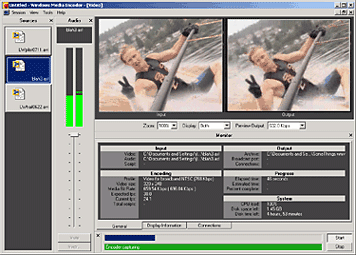
Windows Media Encoder InterfaceWindows Media Encoder is a versatile screen capture, audio, video encoding software from Microsoft. WME captures a window or specified rectangle of the screen, with audio, and produces a compact Windows Media WMV file that can be progressively downloaded and viewed in Windows Media Player.

Windows Media Encoder Tutorials and Resources Roundup

Best Practices for Using the Windows Media Screen Codec - benefits of using the Windows Media Screen codec to capture screen content.

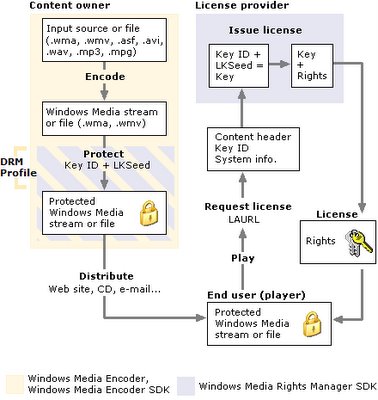
Introduction to Digital Media and the Windows Media 9 Series - Microsoft whitepaper introduces the concept of digital media and explains how you can use the Windows Media 9 Series platform to create, distribute, and play digital media.

Download Windows Media Encoder 10 from Microsoft Website

How to configure Windows Media Encoder (WMV Screencast)
Encode .wav and .mp3 files with Windows Media Encoder

Insert a web URL into your music with Windows Media Encoder
When an audio file contains URL scripts, a browser window opens and a specified Web page appears anytime the song is played on a computer connected to the Internet. That gives you the power to show photographs, lyrics, band information, and even advertisements each time your song plays.

Tutorial to Capture Video Content with Microsoft Windows Media Encoder 7
Create high-quality video content from television, film, and screen sources. Convert live and prerecorded audio, video, and computer screen images to Microsoft Windows Media based content for live and on-demand delivery.

Some software applications may not need to have audio in the final output files. This Microsoft knowledgebase article shows you how to capture a "video only" file with Windows Media Encoder version 7.0.

Streaming live video using Windows Media Encoder 7.1

Encode audio for the Handheld PC with WME 9

How to use Windows Media Encoder to record itself - Screencast

If you have questions about Windows Media, check out Windows Media Encoder Forums and Support

Download Windows Media Codecs - WM9Codecs.exe
Contains Windows Media Audio and Video codecs for Windows Media Player 7.1, Windows Media Player for Windows XP, Windows Media Player 9 Series, and Windows Media Player 10.

Windows Media Encoder Download on Microsoft Website requires Windows validation.

Desktop Screen Sharing Software for E-Meetings

Desktop Screen Sharing Software for E-Meetings

E-meeting solutions enable a computer screen to be shared in addition to sharing a phone line. Sharing applications and documents on a screen enhances a conference call. Most of the popular web conferencing systems are already equipped with Screen Sharing Software so that office workers can connect with remote colleagues as if they were in the same room. 

With services such as WebExMicrosoft Live Meeting , Macromedia Breeze, andNetspoke, meeting participants are invited via E-mail to click on a prearranged link to enter the conference. The shared computer screen can be used to display a specific document or to share a Web browser to demonstrate an online application.

Robin Good mentions several cost-effective screen-sharing services that have extremely low monthly costs, offer a free trial, can be cancelled at any time, and do not generally require complex installation procedures or large software downloads. 

NetOp School takes the concept of the "Virtual Office E-Meeting" to the classroom. Students located in your computer lab, across campus or anywhere in the world can log into your virtual classroom where you can broadcast your screen, multimedia files, or any of the student's screens. The entire virtual training sessions can be recorded and you can monitor students' screens as they work during a class. 

InformationWeek has good list of points that you would like to answer before choosing a e-meeting solution vendor.

Q. Should I license the software or just subscribe ?
A. Depends on how often will E-meetings be held? Many services are priced by subscription rather than by individual meetings. Even if you hold meetings infrequently, it may be less costly to subscribe. For very heavy usage, licensing of software to run on your own server may be more cost-effective, but it isn't offered by every vendor. (Citrix users may want to consider their GoToMeeting product.)

Q. Will pop-up blockers stop the E-meeting software from functioning?
A. Many users have pop-up blockers installed in their browsers but don't always know how to disable them.

RealVNC is the only web based screen sharing software that is available for free. UltraVNC/TightVNC are a big improvement over regular VNC. Read this interestingSlashDot thread on choosing the right VNC Software for your job. 
Listen to Stanford University Lectures Online

Listen to Stanford University Lectures Online

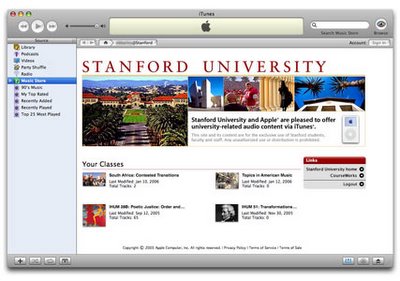
Stanford University Faculty lectures, seminars, interviews and panel discussions featuring Stanford faculty from across disciplines are now available online for download to anyone, anywhere for free.


All you need is an Apple iPod or a PC / Mac with the Apple iTunes software. You can download all of the content from Stanford on iTunes for free .

To get started, launch the iTunes software and search for "Stanford" in the iTunes U section. This is also available inside the iPhone and iPad.

Open Stanford inside iTunes, browse the lectures, presentations and other audio content, download them to your computer or burn a CD.

Stanford started this public podcasting service Stanford on iTunes using Apple iTunes U service after running the program internally for some time.

Kategori

Kategori