Showing posts with label Tools. Show all posts

Teach yourself Touch Typing with Free Tools

Touch typing, or the art of typing with your 10 fingers, can do wonders to your productivity. Most technologically literate people know a bit of typing but if you can type without looking at the computer keyboard, you can get work done faster and gain an edge. Touch typing is also a useful skill to have for mobile and tablet users because when you perfectly know where the keys are, you can “Swype” faster.


Master the Art of Touch Typing

I learned the basics of typing on an old typewriter. Two decades later, I am busy hunting a good typing software for my kid and the number of choices that are available on the web now is mind-boggling. I’ve shared my research here and, whether you are a beginner looking to learn typing or typing to improve your typing speed, this list should help you.
If you are just getting started, the BBC’s Dance Mat Typing should be your go-to resource. It is a browser-based game for kids where each lesson touches a different set of keys and there’s a game at the end of each level to test what you have learned. The lessons would require the Adobe Flash player enabled in your browser.
The next recommended resource is Typing.com, a free website where you’ll find interactive tutorials and drills to help you learn typing step-by-step. Typing Study is a similar resource but unlike other typing lesson that focus on the English keyboard, Typing Study has lessons for keyboards of most popular languages including Hindi and it requires no Flash Player either.

Tipp10 (Mac, Windows) and Typist (Mac only) are desktop software that teach typing offline and you also have the option to upload your own text – like pages of your favorite novel – for practice.

Practice Typing with Online Games

The best way to learn typing is through practice and there are a plethora of online typing games that will help.
The very-addictive Z-type and QWERTY Warriors are shooter games where the ships are assigned a word and you’ve to type as fast as you can to shoot these advancing ships. Type Racer and TyprX let you test your typing speed while playing a basic game of car racing with other users. 10fastfingers lets you practice typing the most common English words while Typing Club allow you to practice individual keys that you you need think need more trainging. Advanced users can try the Typing Karaoke to test their typing skills.
Touch-typing is not difficult and you can become a pro if you set aside 30 minutes everyday for a week or two. Also, it is OK to make mistakes during training but always avoid looking down at the keyboard while typing.
Finally, invest in a good comfortable keyboard – I use Microsoft’s Sculpt keyboard and recommend it highly for ergonomics.

Most Useful Twitter Services That Can Help Your Business Grow

The concept of Twitter may seem weird at first but there’s lot of value in connecting with people though Twitter.

Businesses now use the Twitter ecosystem to pre-announce new products, get feedback, share upcoming deals or for tracking buzz around their products and services.
For instance, the Dell Outlet uses Twitter to announce deals and discounts on refurbished Dell computers. JetBlue Airways and Southwest Airlines use Twitter to let customers know about new routes and fare discounts. News sites like BBCand The New York Times publish breaking new stories on Twitter thus replacing the traditional email alerts.
If you also own a product or a service, here are some essential tools to help you harness the full power of Twitter without making any dent in your existing marketing budget because these tools are completely free:
1. Twitter Feed – This service fetches new content from your blog (or any site that supports RSS feeds ) and publishes a link in your twitter account. It will help your existing customers stay updated about news related to products they already own.
2. Tweet Scan – This is like Google for Twitter. It will solve two problems:
a) Tweet Scan is great for monitoring feedback about your product from conversations happening in the Twitter universe. And they provide RSS feeds so you’ll automatically know when people tweet about products.
b) With Tweet Scan, you can find existing customers who are already on Twitter and follow them so they come to know about your existence. Or you may search for the name of your competing products and track potential customers.
3. Twitter PollDaddy – This service lets you use Twitter for getting opinions or for asking questions through polls. Type your question with a list of potential answers and post it to your Twitter account.
So if you are nearing a product release and only one of the two features can make it to the final product, use Twitter PollDaddy service to learn from customers which of the two features they think is more important to them.
4. Twitter Response – TwitResponse lets you schedule delivery of your tweets just like the way you send emails in future.
Say if you are announcing a new product at 10 AM EST tomorrow, write a message through TwitResponse and it will automatically get published to your Twitter status exactly at the time you want. You need not be texting at the time of actual launch.
5. Quotably – This is another quintessential twitter service that makes it easy for you to follow conversations happening around your tweets. It arranges replies to all your tweets in a threaded form much like the way you see discussions on usenet groups.
6. TwitterReply – With Twitter, your customers get an alternate way to get in touch with you through public tweets or even direct messages. They may want to know the contact number of your support team or they could be looking for a manual which can they can’t locate on your website.
TwitterReply sends you an instant email whenever there’s a new tweet for you in the Twitter universe. You need it because customers contacting you through Twitter may be looking for instant answers.

Google Gears Enabled Sites That Work Even When You Go Offline

Google Gears, a free add-in for Firefox and Internet Explorer, lets you continue working with certain websites even if you are not connected to the Internet.

Though Google Gears was launched in May 2007, we have seen only a handful of web applications that can work offline with Google Gears. Even some very popular Google products like Gmail, Google Calendar and Google Docs stop working once you unplug your Internet cable.
Now if you are about to embark on a long airplane or train journey without any Wi-Fi, here are some good Google Gears compatible web apps that will continue to work as before:
1. Google Reader [RSS Feeds]- When you go offline, Google Reader will download all new items from your subscribed RSS feeds though it will skip the images.
Every article that you read offline will be marked as read, and any tags you’ve applied will also be saved when you go back online.
2. Remember The Milk [TODO Lists] – Our favorite task management application can work offline without any limitations. You can add new tasks or edit existing tasks (change priority, tags, date, status) and all changes will be synchronized when you come back online.
3. MindMeinster [Mind Mapping] – You can create new mind maps (or edit existing ones) with this web based mind mapping application even while staying disconnected from the internet. You need a pro or trial account to the use the Google Gears feature of MindMeinster.
4. Passpack [Password Manager] – Passpack helps you store and manage login-passwords and other keys. All the data is stored online but with Google Gears, you can still access your secret codes without Internet.
5. Zoho Writer [Word Processor] – Zoho is the first among all web office suites to add offline features in their online word processor. You can access documents stored inside your Zoho account and edit them offline inside the web browser.
6. Google Calendar – Though the offline version of Google Calendar is not live yet, it is coming for sure. Just open the Google Calendar website and type javascript:_olp_showPromo(); in the browser address bar – you will be prompted to install Google Gears.
The world still needs a good image editing application that can work with Google Gears.


Google Free Proxy Server โ€“ Language Translation

Google Free Proxy Server – Language Translation

When you translate a website from one language to another using Google Translate, the URL is something like google.com/translate?langpair=en|ar where en|ko is the language pair indicated the site will be converted from English to Arabic.
Now if you make both the languages in the pair same (i.e., en|en for English to Engli sh), the translation is effectively skipped but the requested web content is still served from Google servers. Thus, lot of people use Google Translate as a proxy server to access blocked websites.
However, the honeymoon is almost over because Google has stopped accepting website translation requests that have the same language on both sides of the pair (en|en, it|it, etc). Google uses their own language translation software and they have probably done this to prevent misuse of their translation service.
The only consoling part is that this “free proxy” trick still works perfect with other translation tools like Yahoo! and AltaVista Babelfish that are powered by Systran. See a real example that uses Babel Fish – look at the URL in your address bar.
Macromedia FlashPaper Vs Adobe PDF

Macromedia FlashPaper Vs Adobe PDF

FlashPaper files are smaller than PDF files due to compression. If you compress both the pdf & the flash paper with zip, they end up about the same size. This is because swf's have built in compression while pdf's don't seem to.

Flash Player is slower than Adobe Reader especially when you make the window large, and are trying to scroll, you get a very sluggish interface (as compared to any normal application).

Dave Wraight compares Macromedia FlashPaper with Adobe PDF and feels that FlashPaper has a lot of potential to provide source content in a form that is useful inside other Macromedia technologies (Director, ShockWave, AuthorWare) and also in common web standards such as HTML.

However its future usefulness as a means to sharing content may be limited by either the underlying document format or the viewing technology.

Adobe recently acquired Macromedia and their PDF standard is already facing the heatfrom Microsoft's Metro which is being called by some as a potential "Adobe Killer".

See this PDF presentation on Web Standards: Redesigning Sydney Morning Herald 
How to Use Windows Media Encoder 9 Series

How to Use Windows Media Encoder 9 Series

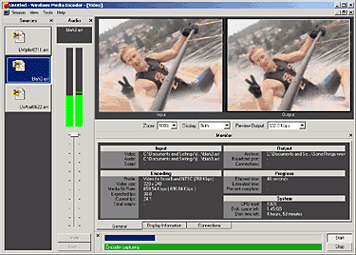
Windows Media Encoder InterfaceWindows Media Encoder is a versatile screen capture, audio, video encoding software from Microsoft. WME captures a window or specified rectangle of the screen, with audio, and produces a compact Windows Media WMV file that can be progressively downloaded and viewed in Windows Media Player.

Windows Media Encoder Tutorials and Resources Roundup

Best Practices for Using the Windows Media Screen Codec - benefits of using the Windows Media Screen codec to capture screen content.

Introduction to Digital Media and the Windows Media 9 Series - Microsoft whitepaper introduces the concept of digital media and explains how you can use the Windows Media 9 Series platform to create, distribute, and play digital media.

Download Windows Media Encoder 10 from Microsoft Website

How to configure Windows Media Encoder (WMV Screencast)
Encode .wav and .mp3 files with Windows Media Encoder

Insert a web URL into your music with Windows Media Encoder
When an audio file contains URL scripts, a browser window opens and a specified Web page appears anytime the song is played on a computer connected to the Internet. That gives you the power to show photographs, lyrics, band information, and even advertisements each time your song plays.

Tutorial to Capture Video Content with Microsoft Windows Media Encoder 7
Create high-quality video content from television, film, and screen sources. Convert live and prerecorded audio, video, and computer screen images to Microsoft Windows Media based content for live and on-demand delivery.

Some software applications may not need to have audio in the final output files. This Microsoft knowledgebase article shows you how to capture a "video only" file with Windows Media Encoder version 7.0.

Streaming live video using Windows Media Encoder 7.1

Encode audio for the Handheld PC with WME 9

How to use Windows Media Encoder to record itself - Screencast

If you have questions about Windows Media, check out Windows Media Encoder Forums and Support

Download Windows Media Codecs - WM9Codecs.exe
Contains Windows Media Audio and Video codecs for Windows Media Player 7.1, Windows Media Player for Windows XP, Windows Media Player 9 Series, and Windows Media Player 10.

Windows Media Encoder Download on Microsoft Website requires Windows validation.

Kategori

Kategori