Showing posts with label Voice. Show all posts

How to Turn Off Volume Shadow Copy

Volume shadow copy is a feature on all versions of the Microsoft Windows operating systems that allows backup copies of files or folders on a specified volume, either automatically or manually. 

To disable the volume shadow copy, the service has to be stopped. The service can be stopped from the volume shadow copy properties window and Windows administrative tools. 

How To Disable Volume Shadow Copy


What is Volume Shadow Copy?

Volume Shadow Copy, also known as Snapshot Service or VSS is a feature embedded in Windows 2003 and later in all releases of Microsoft Windows. This technology allows you to make manual or automatic backup copies or snapshots of a file or folder on a specific volume. Shadow Copy technology requires the file system to be NTFS. 

Note that once the volume shadow copy is disabled, there is no use for previous versions of a file or folder element. To lighten the properties of a file or folder,you must remove the previous versions tab through changes in the registry. If disk space poses a problem, users can edit the disk space allocated to shadow copies so that you don't have to disable the volume shadow copy. 

Disabling Volume Shadow Copy

Click on Start and type services.mc
 into the search bar. Hit Enter. 

An option for Volume Shadow Copy will appear. Double click on the icon. 

Change the startup type to Manual, and then click on Stop: 


Move to the Recovery tab: 


Set the First failure, Second failure, and Subsequent failures options to Take No Action. 

Press OK to confirm. 

How To Edit the Disk Space Allocated to Shadow Copy

If you do not want to disable shadow copies, and would prefer to customize the maximum disk space allocated to this service, here's a quick tutorial. 

Go to your Start menu, and navigate to All Programs > Accessories. 

Right-click the Command Prompt > Run as administrator. 

Next, type the following command: 
vssadmin resize shadowstorage/On = C: / For = C: / maxsize = 3GB 
. 

Note: 

The / On = C: indicates that the photos will be saved on the C drive. 

The / For = C: indicates that the photographs are those of the C drive. 

The / maxsize = 3GB indicates the size allocated to instant snapshots. In this case, that total is 3GB. 

Confirm by pressing OK. 

Disable Previous Shadow Copy Versions

Now that the service is disabled, all Previous Versions are useless. In order to lighten the menu and properties of elements, it is best to remove it. However, before proceeding with this, it is highly recommended that you back up your registry: 


Open the Registry Editor and locate the following key: HKEY_LOCAL_MACHINE\SOFTWARE\Policies\Microsoft\ 
. 

Create a new key with the name PreviousVersions by going to the Edit menu > New > Key. 

Next, create a new DWORD (32bits) under the latter key by using the name DisableLocalPage. You can do this by going to the Edit menu > New > DWORD (32 bit). 

Double click this value and put 1 in the data fields.

How to Train Siri, Cortana, and Google to Understand Your Voice Better


No two people sound exactly alike. Different people have different accents and ways of pronouncing words, and computer voice recognition systems like Siri, Cortana, and Google’s voice search aren’t as good as actual human beings at understanding every voice. Train your voice assistant and it’ll be better at understanding you.

Traditionally, computerized voice recognition systems have required some training before they understood you. Modern voice assistants are designed to “just work,” but you can still make them recognize the words you say more often by training them.


Siri on IOS 9.1

Apple added some voice training features to Siri in iOS 9. Activate the “Hey Siri” feature — which allows you to say “Hey Siri” and start talking to Siri from anywhere — and you’ll be prompted to perform some voice training.

(On most iPhones, this only works while your screen is on or while your phone is plugged in. If you have an iPhone 6s, you can also say “Hey Siri” while your screen is off to start a voice search.)

To activate this feature, open the Settings app on your iPhone or iPad, tap the “General” category, and tap “Siri.” Activate the “Allow “Hey Siri”” option and you’ll be prompted to train Siri.

Siri will have you say “Hey Siri”, “Hey Siri, how’s the weather today?”, and “Hey Siri, it’s me.” This will improve Siri’s ability to understand you.


Cortana on Windows 10

Cortana includes a voice-training feature so you can help Cortana understand your voice better. Like Google, Cortana will upload your voice activity and store it to help Cortana learn your voice over time and understand you better — that’s what the “Speech, inking, & typing” privacy setting controls. You could disable it and tell Cortana to “Stop getting to know me,” but then it would have a harder time understanding you.

To start training Cortana, click or tap the Cortana bar on the taskbar, click the “Notebook” icon at the left of the Cortana pane, and select “Settings.” Activate the “Let Cortana respond to “Hey Cortana” option and then click the “Learn my voice” button. Cortana will walk you through saying a variety of phrases to learn your voice. All of these are things you can actually do with Cortana

.


Google on Android, Chrome, and Elsewhere

Google doesn’t include a special training process on Android. However, some manufacturers do offer this feature on their devices. For example, the Moto Voice application on Motorola phones will prompt you to train it by saying several things the first time you open the Moto Voice app.

Instead, Google captures and keeps all the voice searches, voice actions, and voice dictation activities you perform on your phone. It stores this with your “Voice and Audio Activity,” which is tied to your Google account and used on Android, in Chrome, and in Google’s apps on iOS. You’re free to delete or halt collection of this information at any time, but leaving it enabled means Google will learn how to recognize your voice and the way you pronounce words over time.

To choose whether or not your Android device reports this information, use the “Activity controls” pane in the Google Settings app.


None of these training processes are mandatory, but they’ll help the service in question understand you better. If you find yourself annoyed that your phone, tablet, or computer doesn’t understand you as well as it should, it may just need some training.

Other similar programs — for example, speech-to-text programs — generally have their own integrated training features, too. For example, the Speech Recognition feature that’s been part of Windows for years can be trained to work better.
How to Use Windows Media Encoder 9 Series

How to Use Windows Media Encoder 9 Series

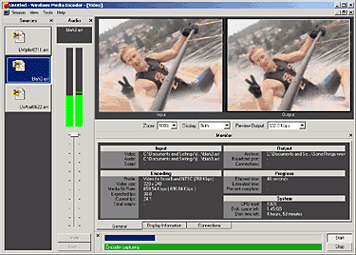
Windows Media Encoder InterfaceWindows Media Encoder is a versatile screen capture, audio, video encoding software from Microsoft. WME captures a window or specified rectangle of the screen, with audio, and produces a compact Windows Media WMV file that can be progressively downloaded and viewed in Windows Media Player.

Windows Media Encoder Tutorials and Resources Roundup

Best Practices for Using the Windows Media Screen Codec - benefits of using the Windows Media Screen codec to capture screen content.

Introduction to Digital Media and the Windows Media 9 Series - Microsoft whitepaper introduces the concept of digital media and explains how you can use the Windows Media 9 Series platform to create, distribute, and play digital media.

Download Windows Media Encoder 10 from Microsoft Website

How to configure Windows Media Encoder (WMV Screencast)
Encode .wav and .mp3 files with Windows Media Encoder

Insert a web URL into your music with Windows Media Encoder
When an audio file contains URL scripts, a browser window opens and a specified Web page appears anytime the song is played on a computer connected to the Internet. That gives you the power to show photographs, lyrics, band information, and even advertisements each time your song plays.

Tutorial to Capture Video Content with Microsoft Windows Media Encoder 7
Create high-quality video content from television, film, and screen sources. Convert live and prerecorded audio, video, and computer screen images to Microsoft Windows Media based content for live and on-demand delivery.

Some software applications may not need to have audio in the final output files. This Microsoft knowledgebase article shows you how to capture a "video only" file with Windows Media Encoder version 7.0.

Streaming live video using Windows Media Encoder 7.1

Encode audio for the Handheld PC with WME 9

How to use Windows Media Encoder to record itself - Screencast

If you have questions about Windows Media, check out Windows Media Encoder Forums and Support

Download Windows Media Codecs - WM9Codecs.exe
Contains Windows Media Audio and Video codecs for Windows Media Player 7.1, Windows Media Player for Windows XP, Windows Media Player 9 Series, and Windows Media Player 10.

Windows Media Encoder Download on Microsoft Website requires Windows validation.

Apple iPod making inroads in University Classrooms

Apple iPod making inroads in University Classrooms

Calvin Garbin, a technology-savvy psychology professor at University of Nebraska-Lincoln, is experimenting with Apple iPod as an educational tool. 

Garbin said technology (like iPod assisted teaching) enables him to teach about 30 percent more material a semester.

Garbin uses a wireless microphone hooked to his shirt to record the 50-minute lecture, then downloads the recording onto his computer. He cuts the lecture into short audio chunks and puts it on his Web site for downloading.

Students confused about certain parts of the lecture can click on a link and listen again. Psychology students don't have to sit at the computer to listen. Apple iPod allows students to take the lecture anywhere.

All the course's homework assignments are online. The professor also uses Powerpoint for the lectures, and students can print off the slides to follow along during class.

Garbin said he hopes to have video of his lectures on the Internet by the end of the semester.

Stanford University Faculty lectures are already available via the Apple iTunes Music store.

Kategori

Kategori