Showing posts with label office. Show all posts

Simple Questions: What is a Windows Live ID or a Microsoft account?

Have you been using devices, tools or services from Microsoft? Then, at some point you might have been asked to provide a Windows Live ID. In Windows 8 you have been asked for a Microsoft Account. Never understood what they are and why you need them, let alone the benefits of having them? If that’s the case, then you should read this article, as it will explain everything you need to know about the Windows Live ID, also called Microsoft Account.

What is Windows Live ID/Microsoft Account?

The question is relatively simple to answer - Windows Live ID or Microsoft Account is an ID composed from an e-mail address and password, which you can use to login to most Microsoft websites, services and properties such as: Hotmail, Xbox Live, all Windows Live services (including SkyDrive and Messenger). It can be used also on your Windows computer, to enhance parental controls for the user accounts used by your children. In Windows 8 it is used to get access to all its features, including integration with Skydrive or to use the application Store. Windows 8, at least so far, is the only place where you will encounter the naming Microsoft Account instead of Windows Live ID. They are the same thing though.

Do I Have a Windows Live ID/Microsoft Account?

How do you know if you have a Windows Live ID? Easy - are you using any of these services: Hotmail, Windows Live Messenger or Xbox Live? If you are, then you already have a Windows Live ID. Use the same e-mail and password to log in to any other websites or services requesting a Windows Live ID.

How to Create a Windows Live ID/Microsoft Account (With or Without a Microsoft E-mail Address)?

If you don’t have a Windows Live ID, you can easily create one by completing all the required forms on the Windows Live Signup Page. When you complete the form, Microsoft proposes that you create an ID using one of their e-mail services (Hotmail or Live.com).
If you already have an e-mail address from another provider and you don’t want to create a new one with Microsoft, you CAN use that one instead. On the signup page, look for a link saying: "Or use your own email address". Click on it and wait for a slightly different form to load.
Complete your existing e-mail address, a password and all the other requested details, and you will have your Windows Live ID created in no time.
Watchout: If you create a Windows Live ID using an existing email address, it is best not to use the same password. Create a different password for your Windows Live ID. In this case, if the password for any of these two accounts gets stolen, the "hacker" won’t have access to both services.

What’s In It For Me?

I guess by now you are asking yourself: Why should I create a Windows Live ID/Microsoft Account? What do I get by having it?
The simple answer is - easy access to almost all Microsoft products, services, properties and websites. Create an ID if you are using or planning to use:
  • Any of the tools in the Windows Live Essentials suite.
  • Devices such as: your Xbox console and the Xbox Live service, your Zune media player or your Windows Phone 7.
  • Get a free e-mail account from Microsoft (Hotmail or Live.com).
  • Use all the features included with Windows 8.

Conclusion

If you are the "geek type", using lots of devices and tools, you will surely need to create a Windows Live ID/Microsoft Account at some point. I hope this tutorial manage to explain the full picture about it. If you still have any questions left, don’t hesitate to ask using the comments form below.

Open Your Google Docs Presentations in Microsoft PowerPoint

Forget the hack, Google Docs now lets you export presentations as PPT files in addition to supporting the PDF format. You can also view your Google Presentations offline in the web browser using the Google Gears extension.
To save a Google Presentation in PPT format, go to the File menu and click "Save as PPT". The export feature has been simultaneously enabled both in standard Google Docs and the Google Apps version. From Google Blog and What’s new.
New Google Docs Features โ€“ Offline Editing, YouTube Video Embeds

New Google Docs Features – Offline Editing, YouTube Video Embeds

Google add two new features in Google Docs today – offline support and video embeds – you can insert YouTube videos in Google Docs or upload video clips from the hard drive.

Using the Google Gears extension in Firefox or IE, you can now view or edit existing documents in Google Docs without requiring an always-on Internet connection – it is however not possible to create new word documents while you are offline in Google Docs.
And any changes that you make to the documents locally will automatically get synched to Google Docs the next time you connect to the Internet.
Details on Google Blog. Scoble at Fastcompany.tv has an interview with Ken Norton of the Google Docs team where they discuss issues like two people editing the same document concurrently but in offline mode. Some more thoughts:
Rafe – "Offline access for Google’s spreadsheet and presentation app will follow after the word processor rollout is complete."
Kevin – "While folks at the Google are messing with Google Gears: any chance for Safari or Opera support? There’s more to the web than IE and Firefox."
Mathew – "Zoho’s services are great, and I use Zoho Show in particular a fair bit, but when it comes to trusting a company with my data I would have to come down on the side of Google."
Josh – "So what has been taking Google so long? Why isn’t it eating its own dogfood and releasing more of its web apps with Gears support? What about Gmail? "
Zoho  already supports offline access via the same Google Gears plugin. See full list of Google Gears compatible web applications.
How to Embed YouTube Videos in Google Presentations

How to Embed YouTube Videos in Google Presentations

You can now insert YouTube video clips inside Google Documents much the same way as you embed videos in web pages or Google Sites.

Just open a presentation document inside Google Docs and choose the Video option under the Insert menu. You can either paste the URL of an existing YouTube video or you can search YouTube videos inside Google Docs itself and insert any video from the search result by picking the video thumbnail and choosing the Select button.
Once a video is embedded in the presentation, you can publish the presentation to the web (as a standard web page) and your video will appear inline.
Alternatively, if someone chooses to download your presentations as a PDF file, the main thumbnail of the YouTube video will appear in the slide instead of the video and the thumbnail image will link to the actual YouTube video.
Google has rolled out support for YouTube only in presentations, the feature is not in Google Spreadsheets or Google Docs yet.
How to Use Windows Media Encoder 9 Series

How to Use Windows Media Encoder 9 Series

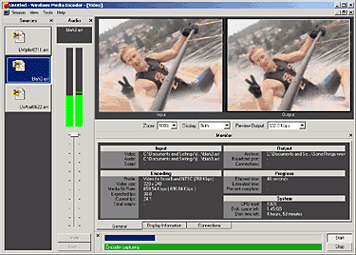
Windows Media Encoder InterfaceWindows Media Encoder is a versatile screen capture, audio, video encoding software from Microsoft. WME captures a window or specified rectangle of the screen, with audio, and produces a compact Windows Media WMV file that can be progressively downloaded and viewed in Windows Media Player.

Windows Media Encoder Tutorials and Resources Roundup

Best Practices for Using the Windows Media Screen Codec - benefits of using the Windows Media Screen codec to capture screen content.

Introduction to Digital Media and the Windows Media 9 Series - Microsoft whitepaper introduces the concept of digital media and explains how you can use the Windows Media 9 Series platform to create, distribute, and play digital media.

Download Windows Media Encoder 10 from Microsoft Website

How to configure Windows Media Encoder (WMV Screencast)
Encode .wav and .mp3 files with Windows Media Encoder

Insert a web URL into your music with Windows Media Encoder
When an audio file contains URL scripts, a browser window opens and a specified Web page appears anytime the song is played on a computer connected to the Internet. That gives you the power to show photographs, lyrics, band information, and even advertisements each time your song plays.

Tutorial to Capture Video Content with Microsoft Windows Media Encoder 7
Create high-quality video content from television, film, and screen sources. Convert live and prerecorded audio, video, and computer screen images to Microsoft Windows Media based content for live and on-demand delivery.

Some software applications may not need to have audio in the final output files. This Microsoft knowledgebase article shows you how to capture a "video only" file with Windows Media Encoder version 7.0.

Streaming live video using Windows Media Encoder 7.1

Encode audio for the Handheld PC with WME 9

How to use Windows Media Encoder to record itself - Screencast

If you have questions about Windows Media, check out Windows Media Encoder Forums and Support

Download Windows Media Codecs - WM9Codecs.exe
Contains Windows Media Audio and Video codecs for Windows Media Player 7.1, Windows Media Player for Windows XP, Windows Media Player 9 Series, and Windows Media Player 10.

Windows Media Encoder Download on Microsoft Website requires Windows validation.

Camtasia Studio 3.0 - Screencasting Swiss Knife

Camtasia Studio 3.0 - Screencasting Swiss Knife

Camtasia Studio 3 is one the most popular Screencasting tools developed byTechSmith. I personally use the wonderful Camtasia Studio with Snagit all the time for my website and presentations.

Camtasia Studio can help you record and edit videos of screen activity in all multimedia formats and enhance the captured material with special effects, narration and a variety of multimedia features. With Camtasia Studio, you can teach and demonstrate complex ideas and subtle points , rather than through words alone with exact video renderings of desktop activity. Stream videos live or distribute by CD-ROM and from the Web.

Camtasia is very popular tool for creating screencast. Even Jon Udell, the lead analyst for the InfoWorld Test Center prefers Camtasia over Qarbon Viewletbuilder andMacromedia Captivate.

Techsmith is now positioning the tool as a Flash Printer for converting CAD Drawings, Photographs to smaller Flash SWF files. The most amazing new features in the upcoming version :

Picture-in-Picture (aka PiP): You can now record the presentation and the presenter. Camtasia now captures video from your video camera and synchronizes it with your screen recording. Now it's easier than ever to deliver training and presentations with a personal touch.

Titling: Give your videos a common look and feel with Titles. Title graphics and text can be inserted to introduce your videos or to add credits to their endings.

The best screencasting software is just getting better. Other new features include quizzing, smaller Flash files, and one month of free web hosting for your videos. If you buy Camtasia Studio 2.1 today, you will get a free upgrade to 3.0 when it's released.

Techsmith has released a free update to Camtasia Studio 3.0.1 which is available for free.

What's new in Camtasia Studio 3.0.1 - Changed the IDs of the PowerPoint buttons so that they don't conflict with the IDs used by the Macromedia Breeze Add-in for PowerPoint.

Compare your version of Camtasia Studio with the latest Camtasia 3.0.1

Techsmith provides a casestudy for converting PowerPoint Live presentations to flash with Camtasia Studio used by Stanford University Professor Carrye.

Thom Robbins tells us that Microsoft Channel 9 team members also use Camtasia Studio for creating screencasts

Kategori

Kategori